Help
How to use Filebender
Every step, with a picture of each page: making your free account, converting, compressing and resizing, downloading, and buying a pass if you need more.
1. Create your free account
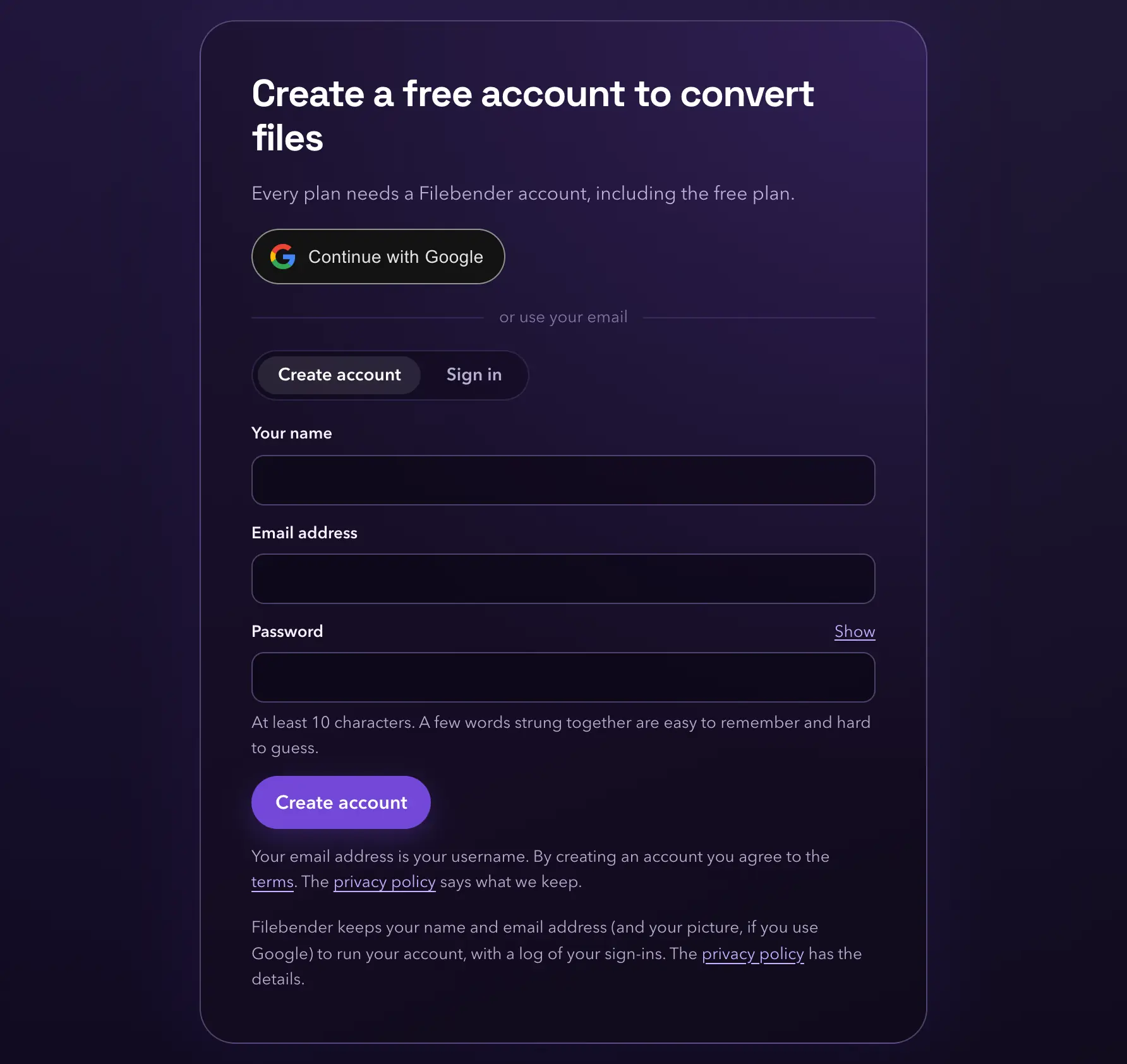
Every plan needs a Filebender account, the free plan included. Making one costs nothing, and it keeps your conversions, your History and any pass you buy yours alone.
- Open the converter, or any other, like HEIC to JPG. (Filebender opens on Pricing; the free plan is the first card there.) While you're signed out, the page shows Create a free account to convert files.
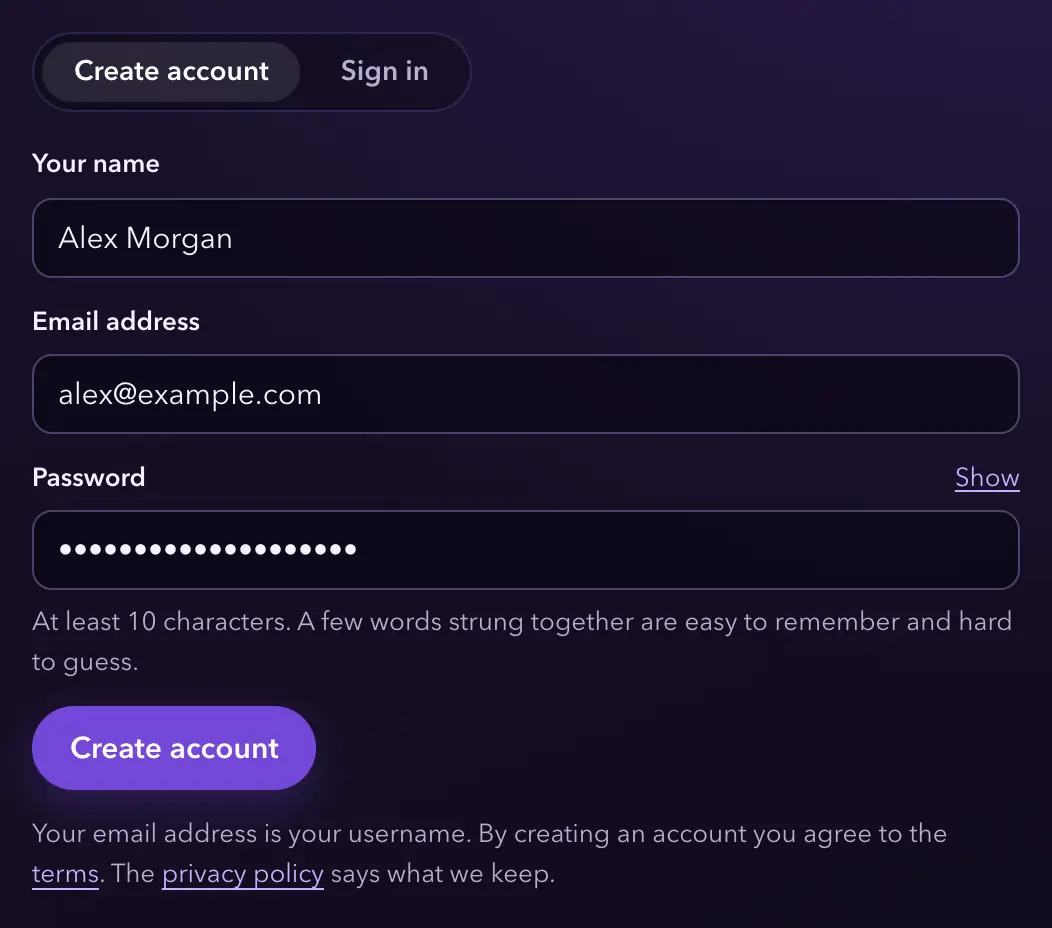
- Either press Continue with Google and choose your Google account, or fill in the Create account form with your name, your email address and a password of at least 10 characters. Use an address you'll keep: Filebender doesn't accept temporary or disposable email addresses.
- Press Create account.
With Google, there's no email to confirm: you're signed in and can start converting straight away.
2. Confirm your email address
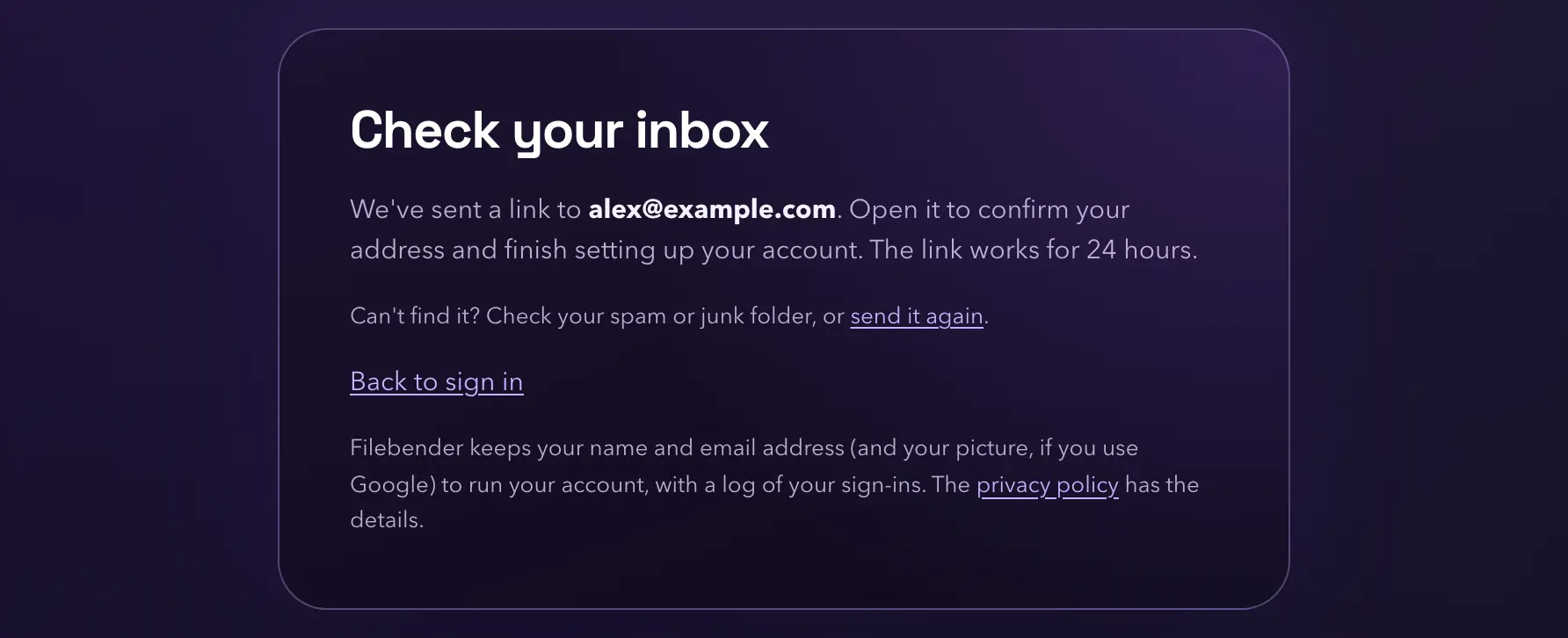
After Create account, Filebender emails you a link from support@rabbitlabs.app. It works for 24 hours.
- Open the email and its link. Nothing is used up until you finish the next step, so a mail scanner opening the link first does no harm.
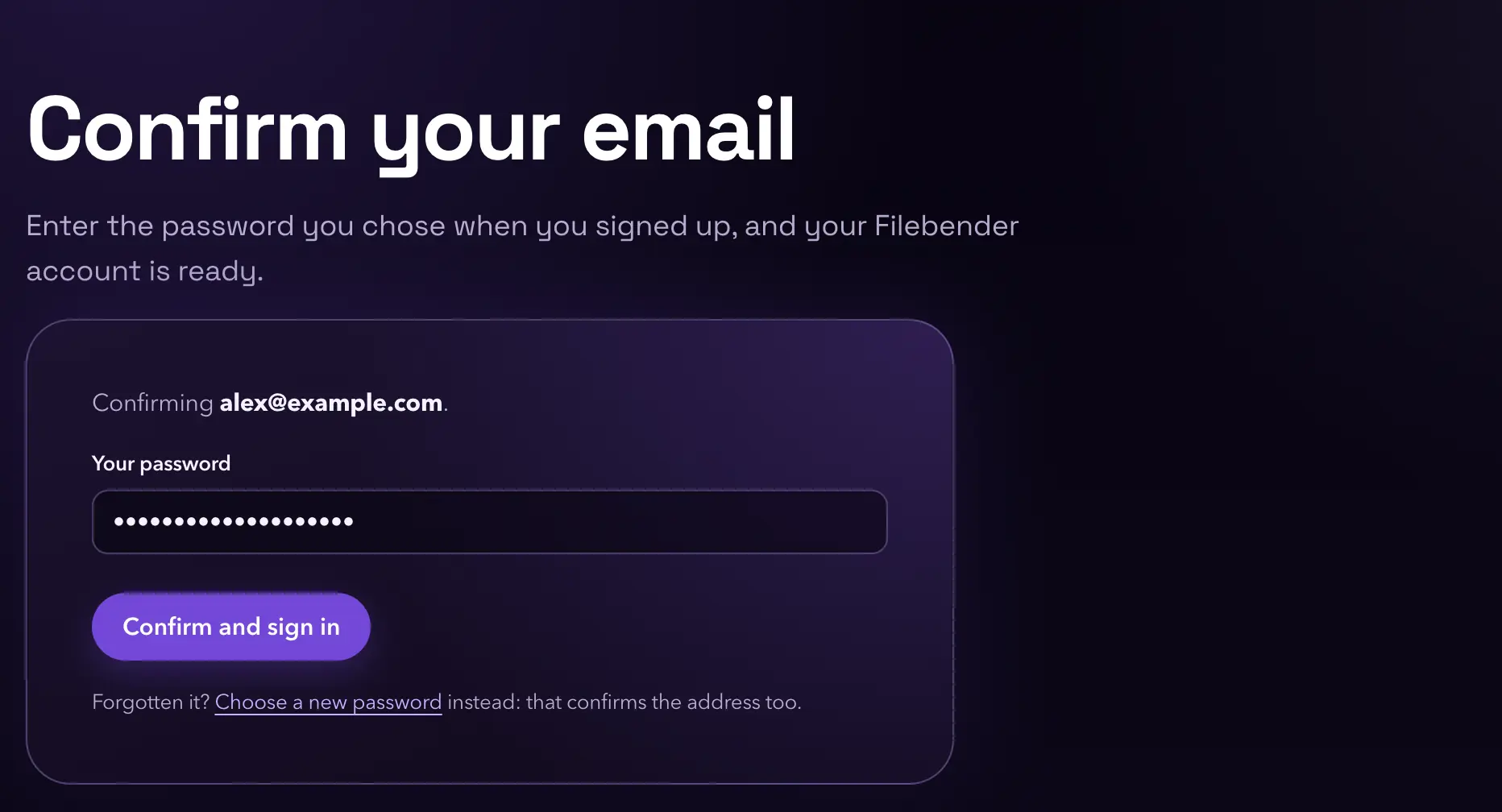
- On the page that opens, type the password you chose and press Confirm and sign in. Asking for the password means a link forwarded to someone else is no use to them.
That's all: you're signed in and can start converting. We also send you a welcome email with your username and what the free plan includes. Continue with Google gets the same welcome when you first sign in.
Nothing arrived? Check your spam or junk folder, or press send it again.
Signing in again, and forgotten passwords
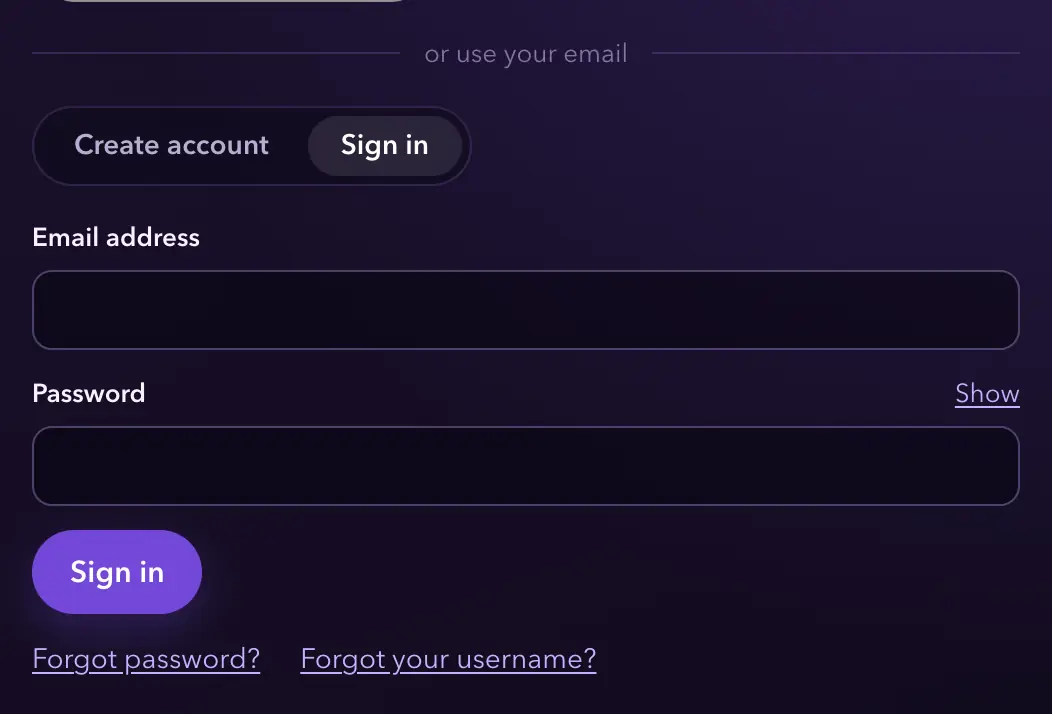
You stay signed in for 30 days in each browser. After that, or in another browser, open Filebender and choose the Sign in tab, or press Continue with Google if that's how you signed up.
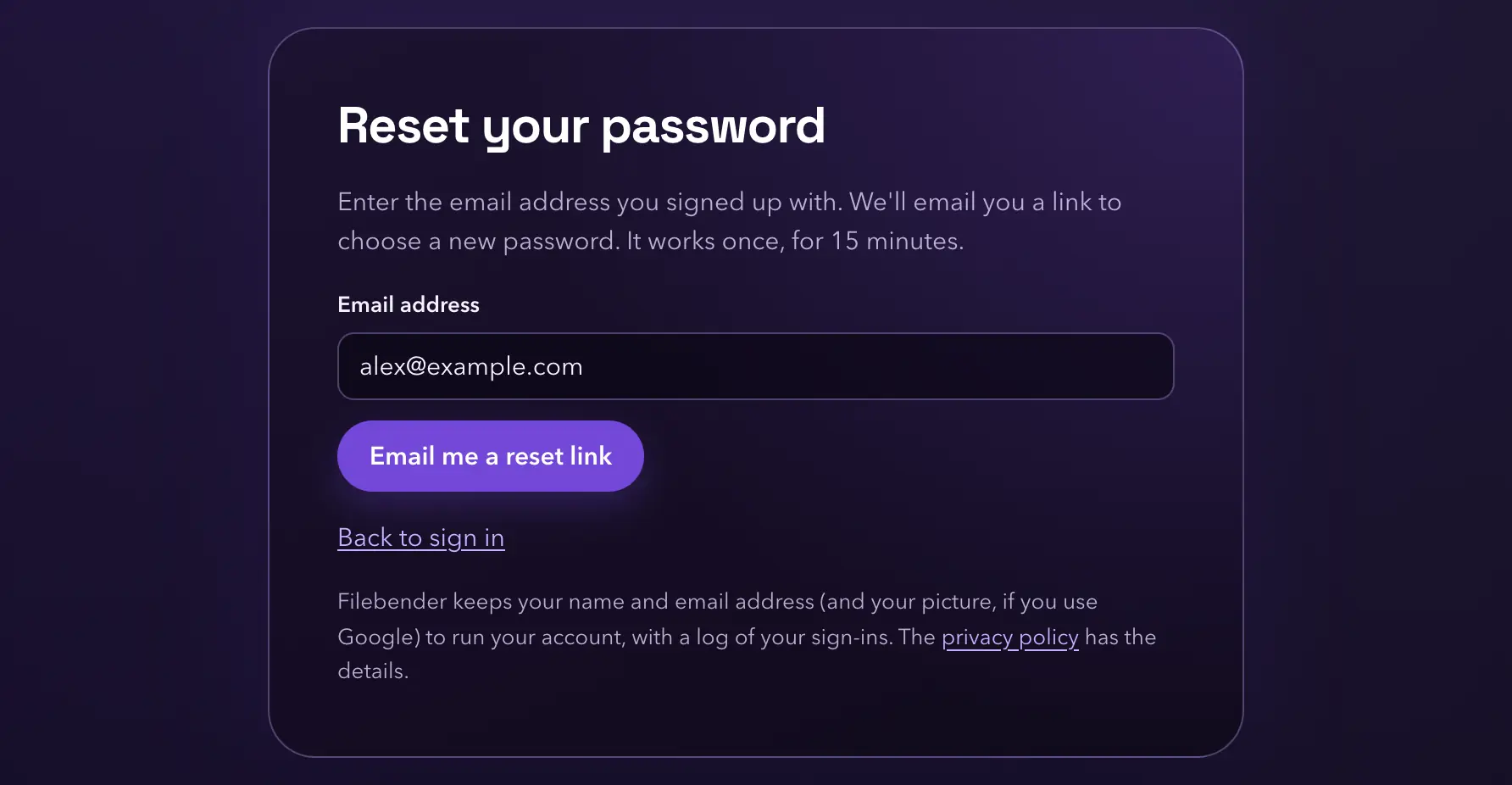
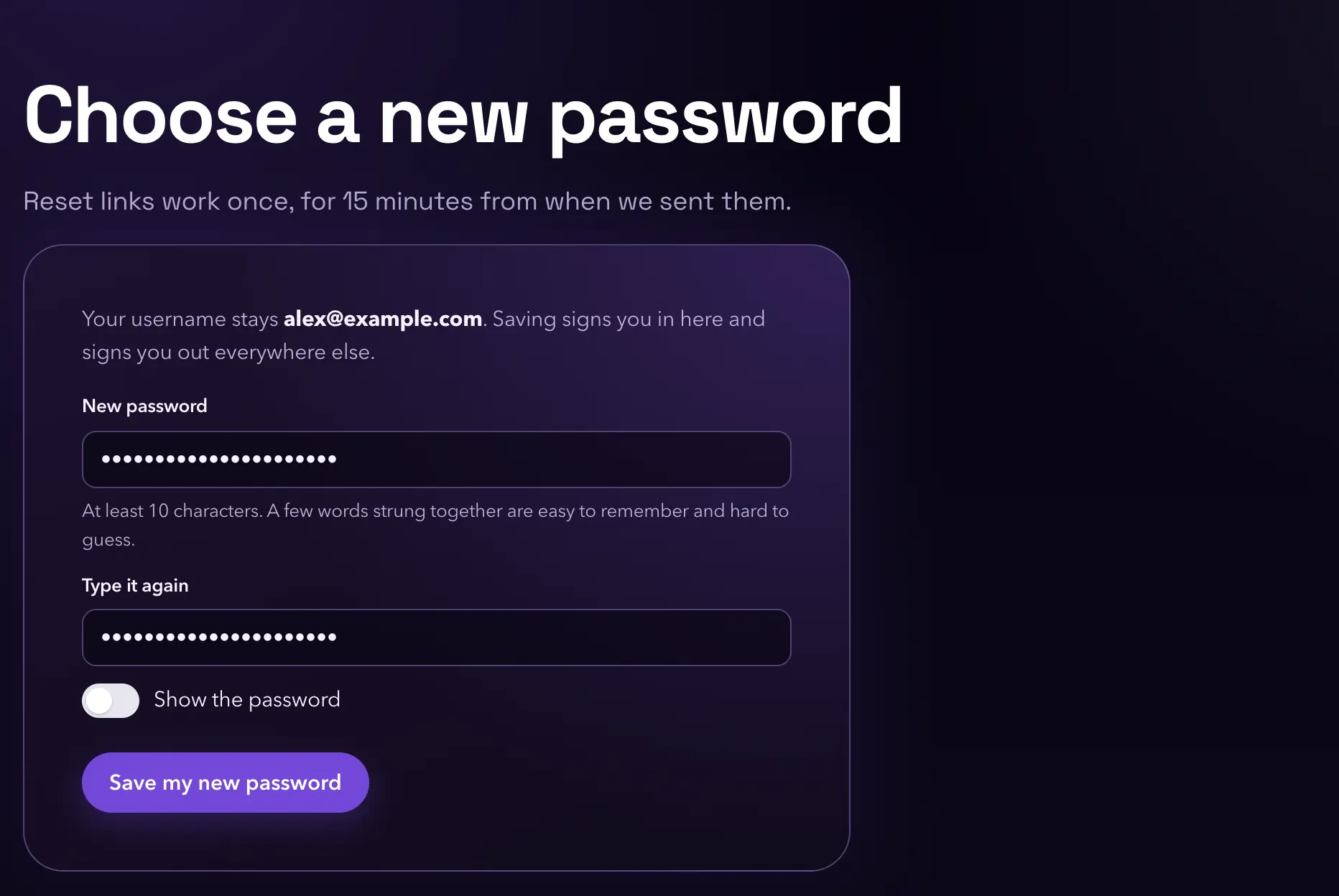
- Forgot password? Enter your email address and we'll send a link to choose a new one. It works once, for 15 minutes. Saving a new password signs you out of every other browser.
- Forgot your username? It's the email address you signed up with. Enter an address you use, and if it has a Filebender account, the email names your username.
Your plan and account
Once you're signed in, the top of every page shows your plan and what's left of it, your name and Sign out when the window is wide enough; on a phone it shows only Sign out, and the line under Choose files says what's left. On the free plan it counts the files left today; with a pass, the files left on the pass. Press your plan to see the passes.
The menu goes by what you want to do: Pricing (the home page, with shortcuts to the most used tools and a list of popular tools under the plans), Convert (trimming audio and video is here too), Compress, PDF tools, Resize and History. The foot of every page lists the tools by group: PDF, Images, Video and audio, and More.

Add your files
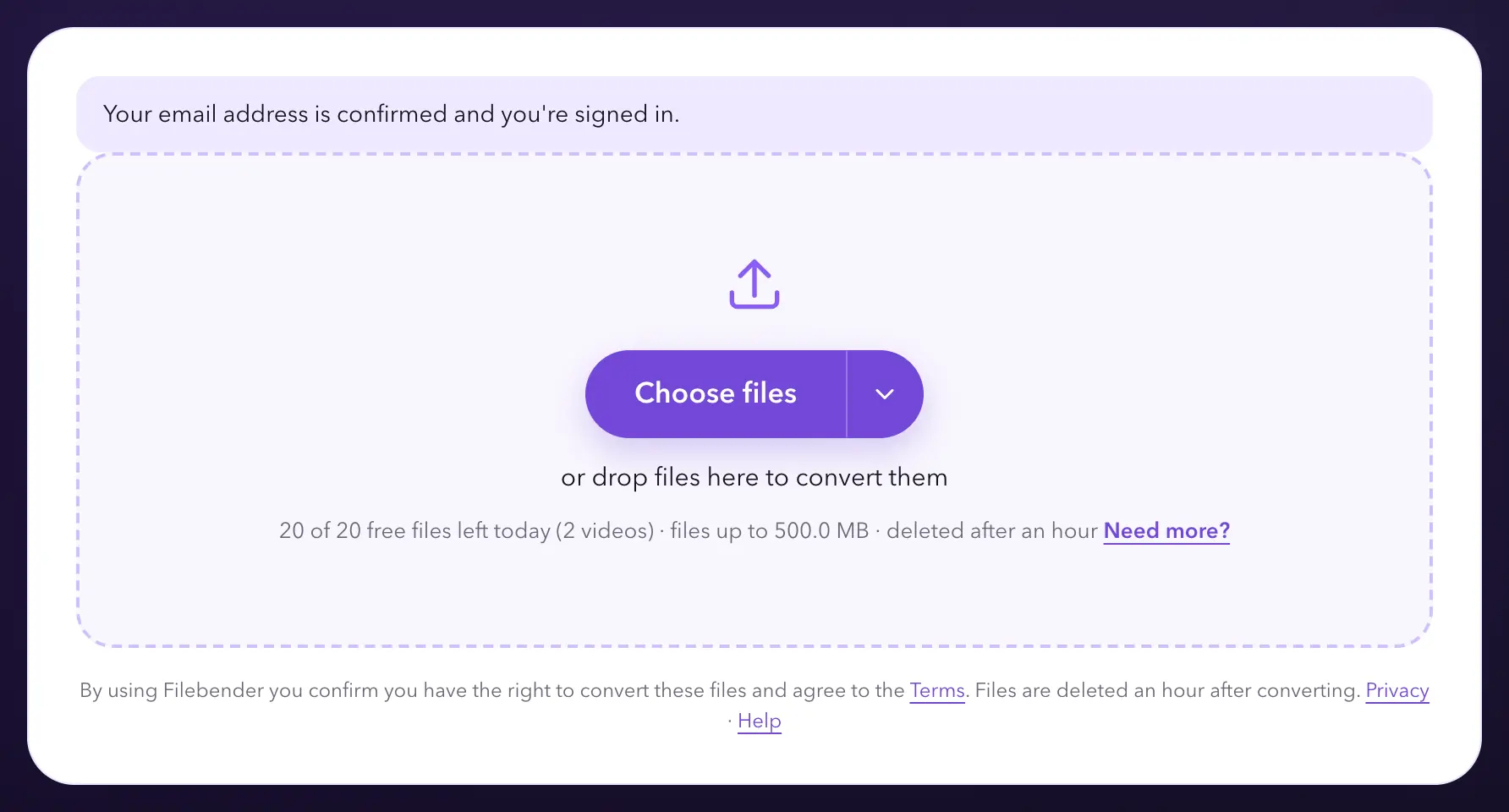
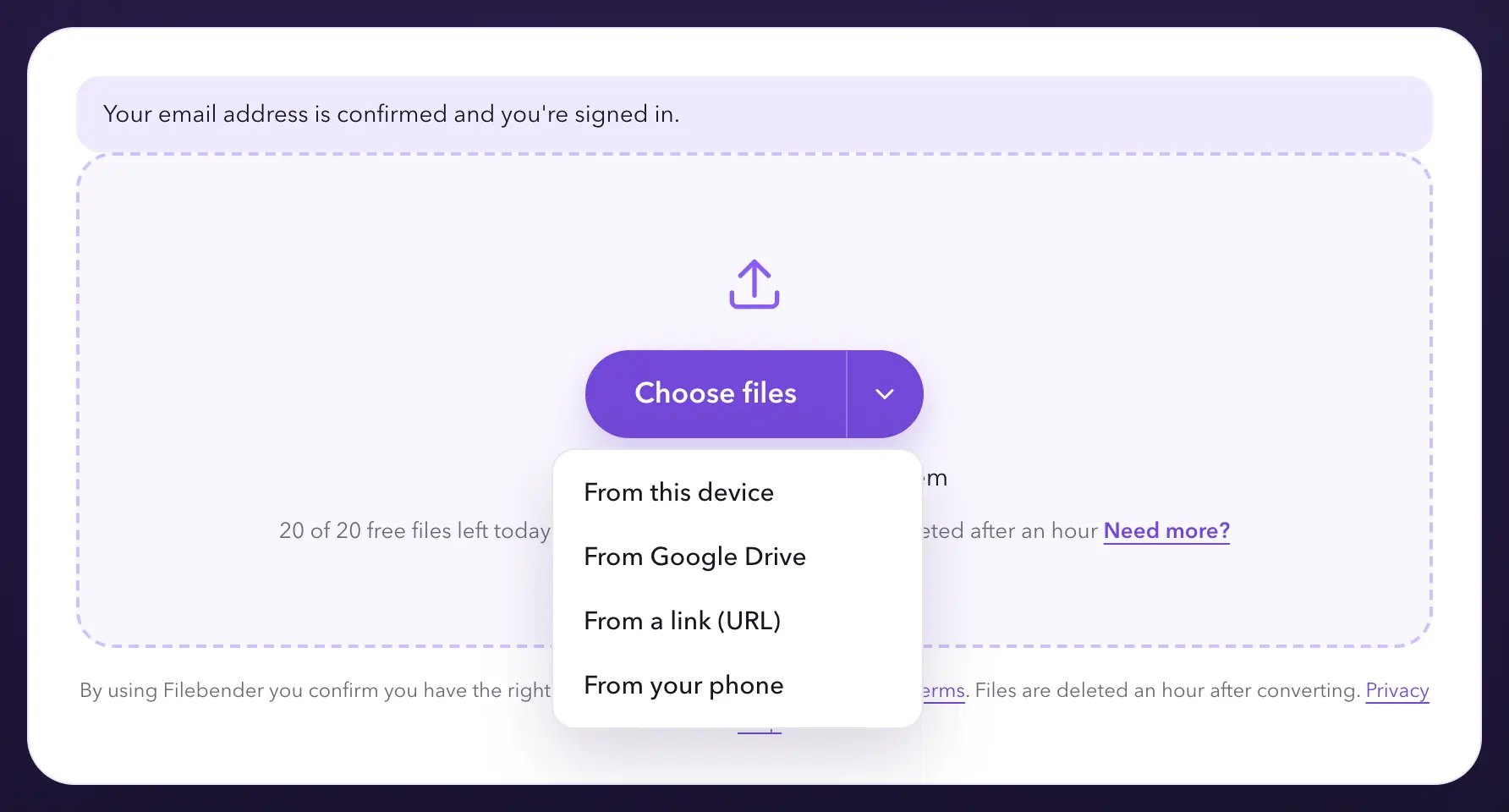
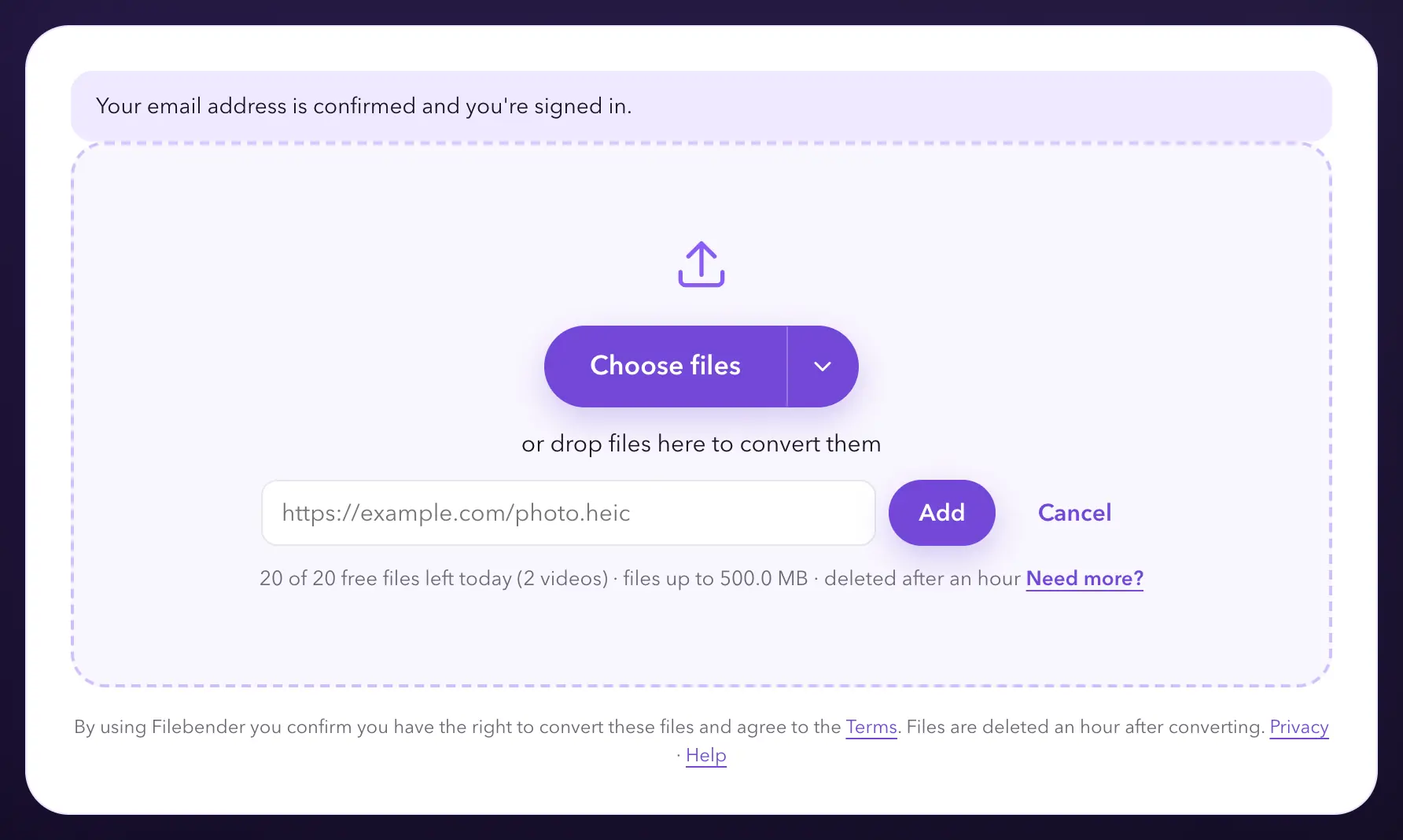
Drop files on the box, press Choose files, or paste an image. The arrow next to Choose files opens more ways to add files:
- From a link (URL): paste the address of a file on the web, and Filebender downloads it. Links that need a sign-in, and addresses on private networks, can't be opened.
- From Google Drive: opens Google's own file picker. Filebender can only see the files you pick there, nothing else in your Drive.
- From your phone: shows a QR code for your phone, so you can send photos and files from it (see Add files from your phone).
On the free plan, up to 20 files convert together, each up to 500 MB. With a pass it's up to 50 at a time, each up to 2 GB. Each file is checked when it's added: a PNG named .jpg is treated as a PNG, and a file that can't be converted, like a copy-protected video, is refused in its row with the reason, before anything runs.
Choose what each file becomes
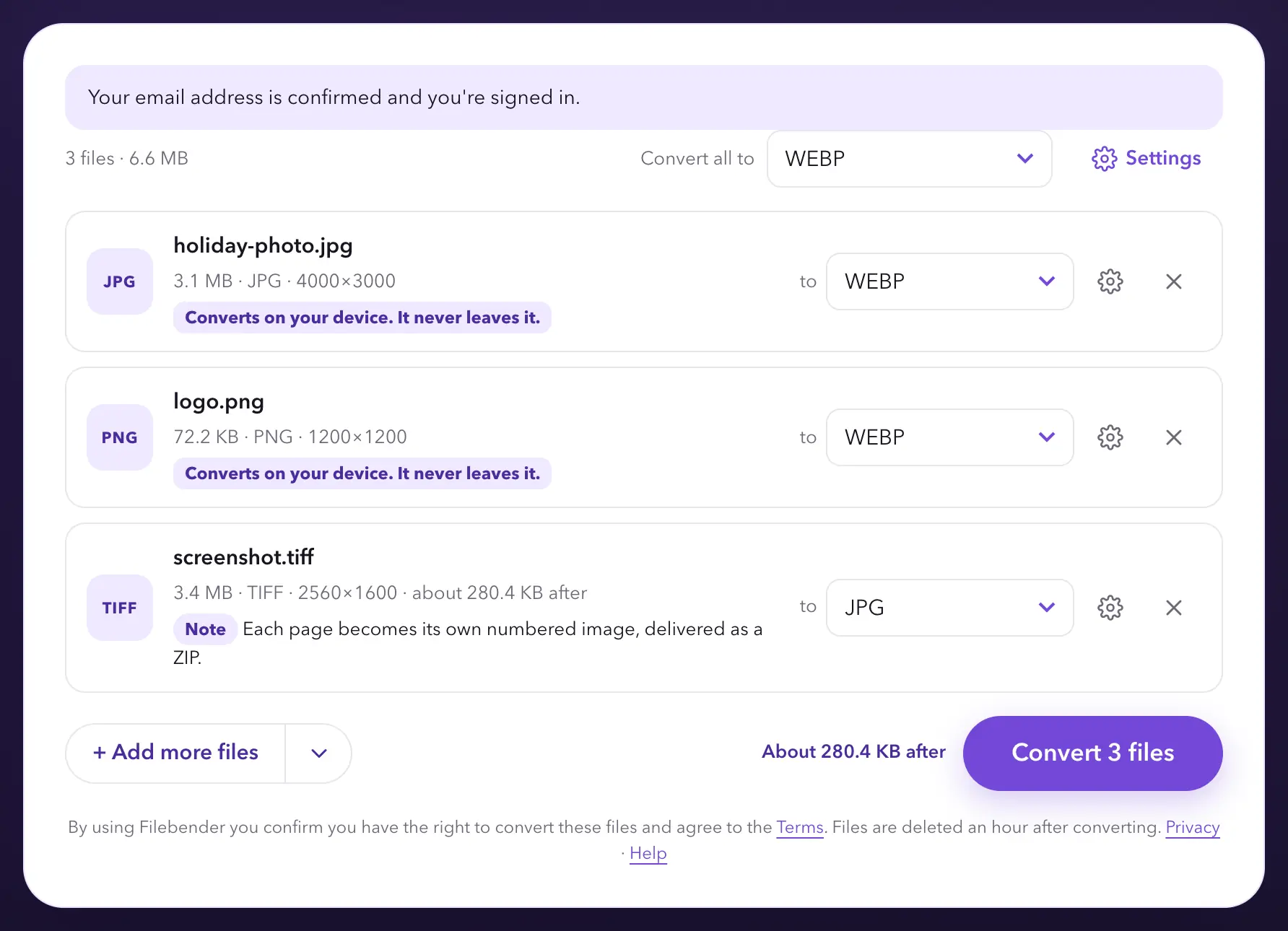
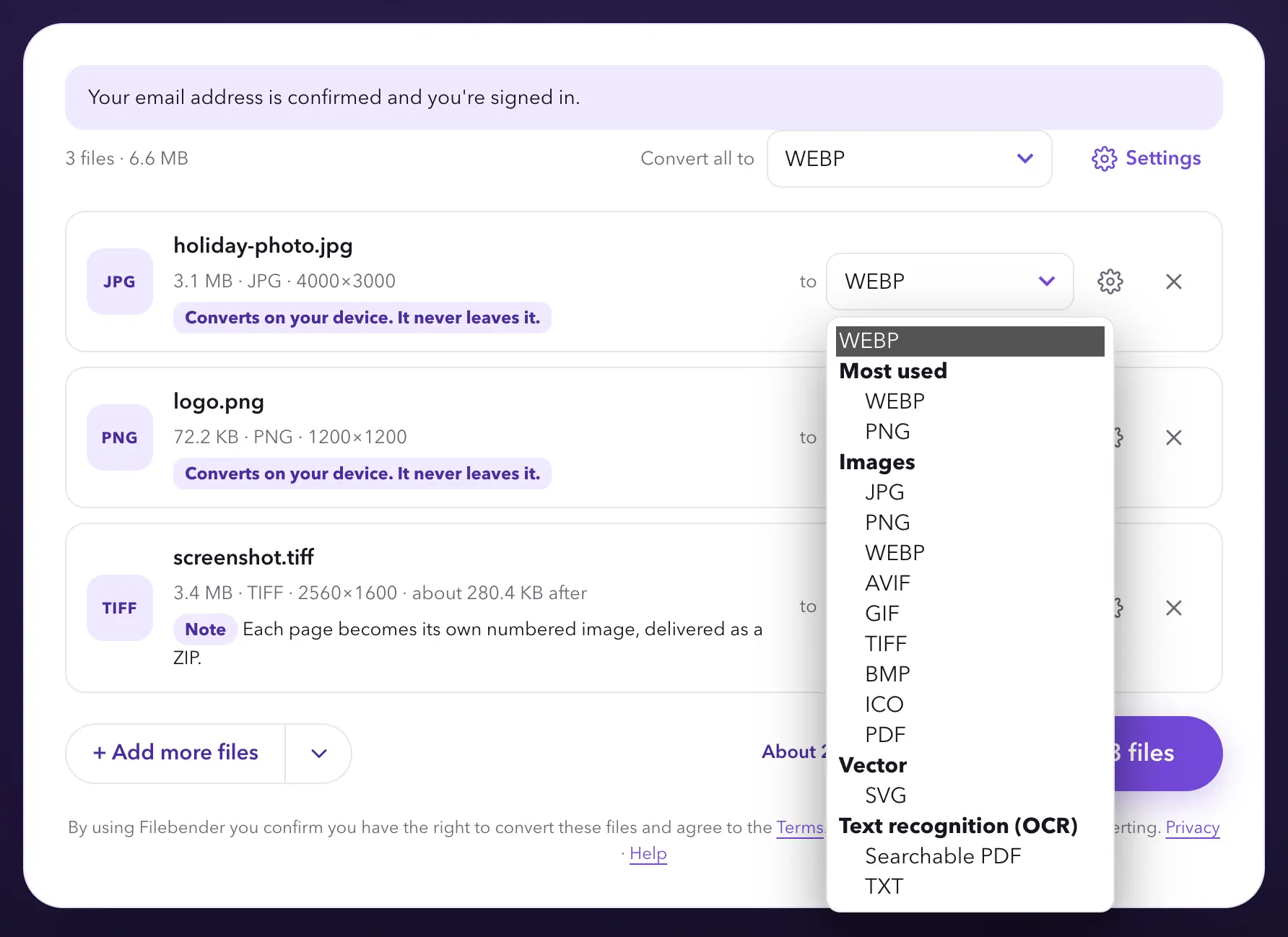
Every file gets its own row, with its size and a list of what it can become. Pick a format in each row, or use Convert all to to set them all at once. For images, video and audio, Filebender estimates the result's size before anything runs; documents, spreadsheets, presentations, ebooks and archives show their size once converted. A picture that will convert on your device shows its new size in pixels instead, and one read on your device that needs the servers gets an estimate only for a target size; otherwise its size shows once converted (see Converted on your device). Each row also says if a conversion will lose something, like transparency or animation.
An archive (ZIP, RAR, 7Z or TAR) has What's inside, so you can convert the files in it without unpacking it first.
Change the settings
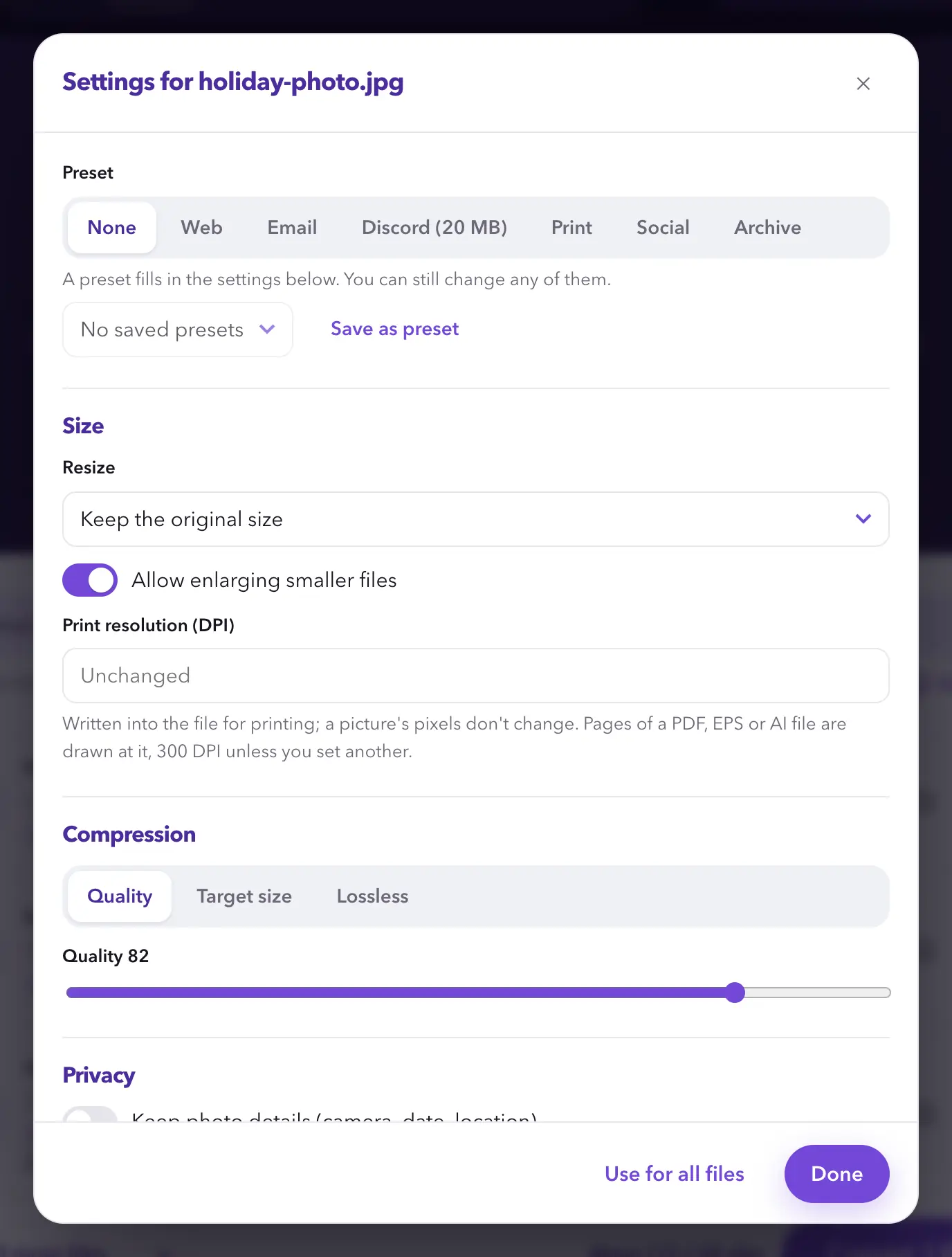
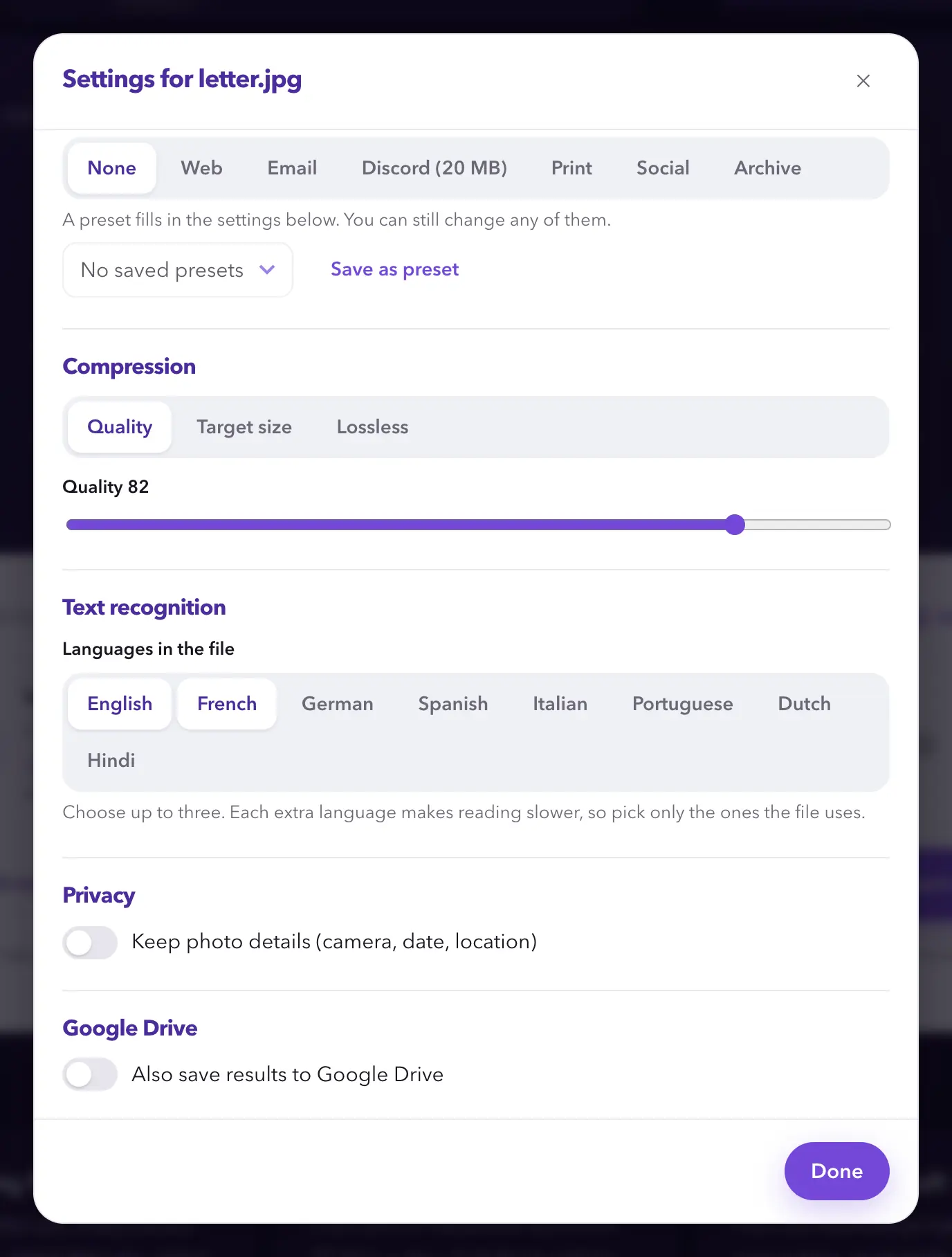
The gear on a row changes that one file; Settings above the list changes all of them. Only the settings that apply to your files are shown:
- Size: a width and height in pixels, a percentage, the longest side, an aspect ratio, social media sizes and icon sets.
- Compression: a quality, a Target size in KB or MB, or lossless.
- Video and audio: codec, frame rate and bitrate.
- PDF: page size, and the resolution of the pictures inside: Email (72 DPI), Ebook (150 DPI) and Print (300 DPI), named for what each is good for, or kept as they are.
- Text recognition: the languages to read, when a file is becoming a searchable PDF or text (see Read the text in scans and photos).
- The fill colour for transparent areas, and whether to keep photo details such as location.
Presets fill in the settings for a purpose, and everything stays editable: Web, Email, Discord (20 MB), Print, Social and Archive. Email aims under 10 MB, to fit as an attachment, and Discord just under 20 MB, Discord's standard upload limit, for pictures and video. Save as preset keeps your own in this browser.
Convert and download
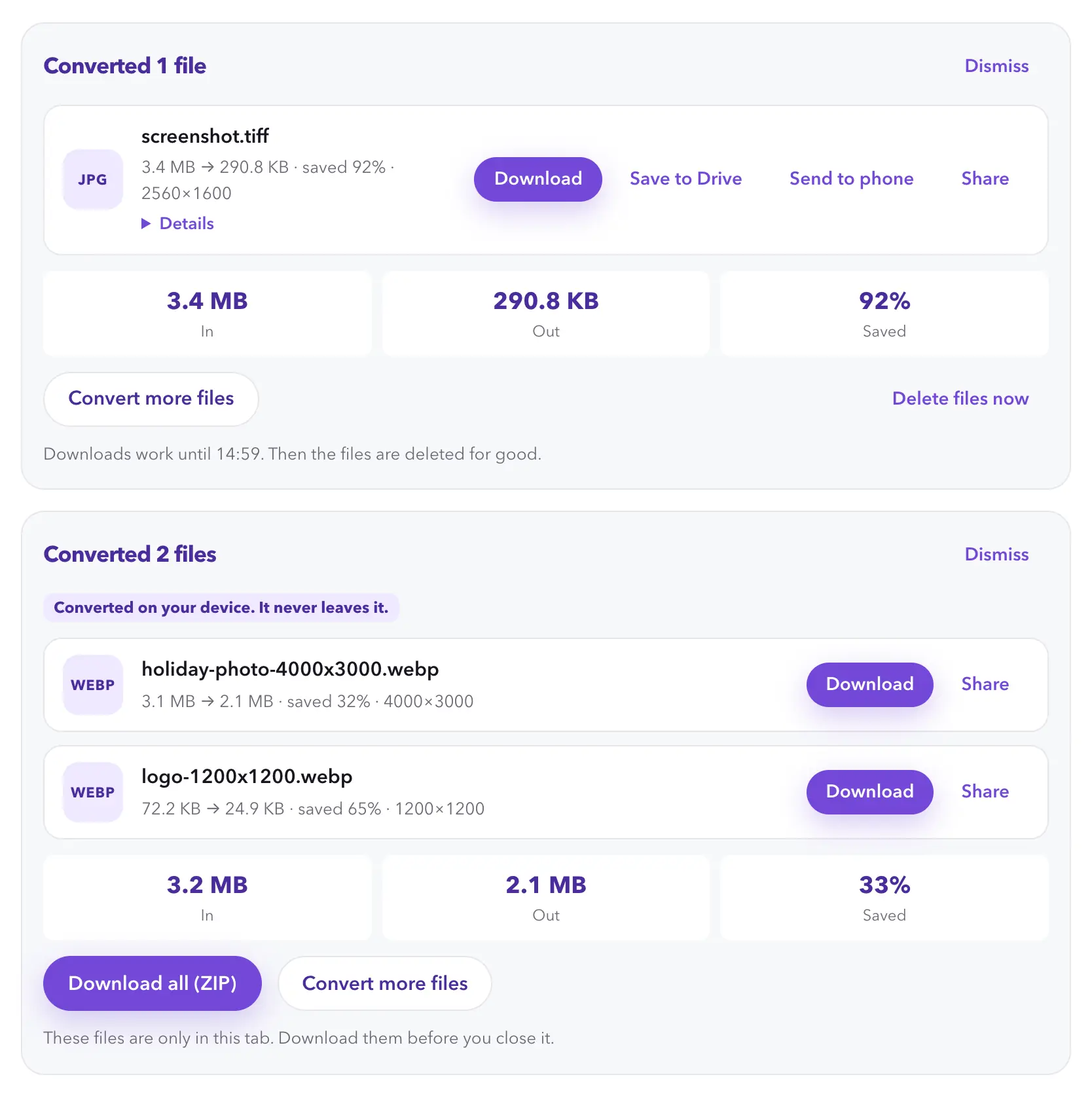
Press Convert. Each row shows its progress, then the size before and after and a Download button. Download all (ZIP) takes everything in one go.
- A file that fails doesn't stop the others, and its row says why and what to try.
- If a result comes out bigger than the original, Filebender asks which one you want.
- A result keeps its file's name with Filebender added: holiday.heic becomes holiday-Filebender.jpg. A page, sheet or size goes before it, as in report-001-Filebender.png, and a file already ending in -Filebender doesn't get it twice. A ZIP of one file's results is named the same way (report-Filebender.zip), and Download all (ZIP) by the date, such as Filebender-2026-09-27.zip.
- Files converted on Filebender's servers are deleted an hour after converting. Delete files now deletes them straight away.
- Send to phone puts a result on your phone with a QR code (see Send a file to your phone), and Share, where your browser can share files, opens your device's share options.
- A conversion that fails, or that you cancel, doesn't count towards your allowance.
Converted on your device
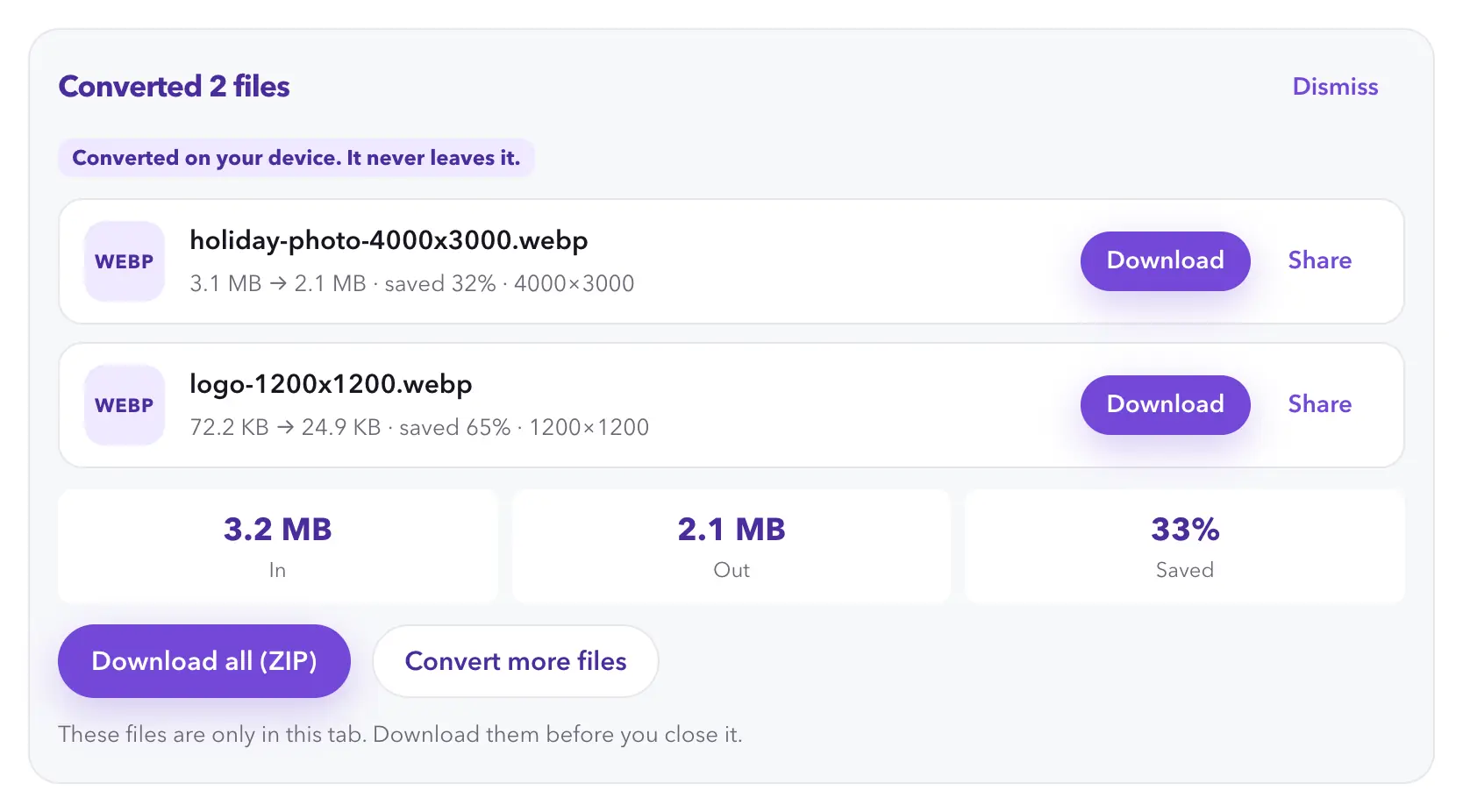
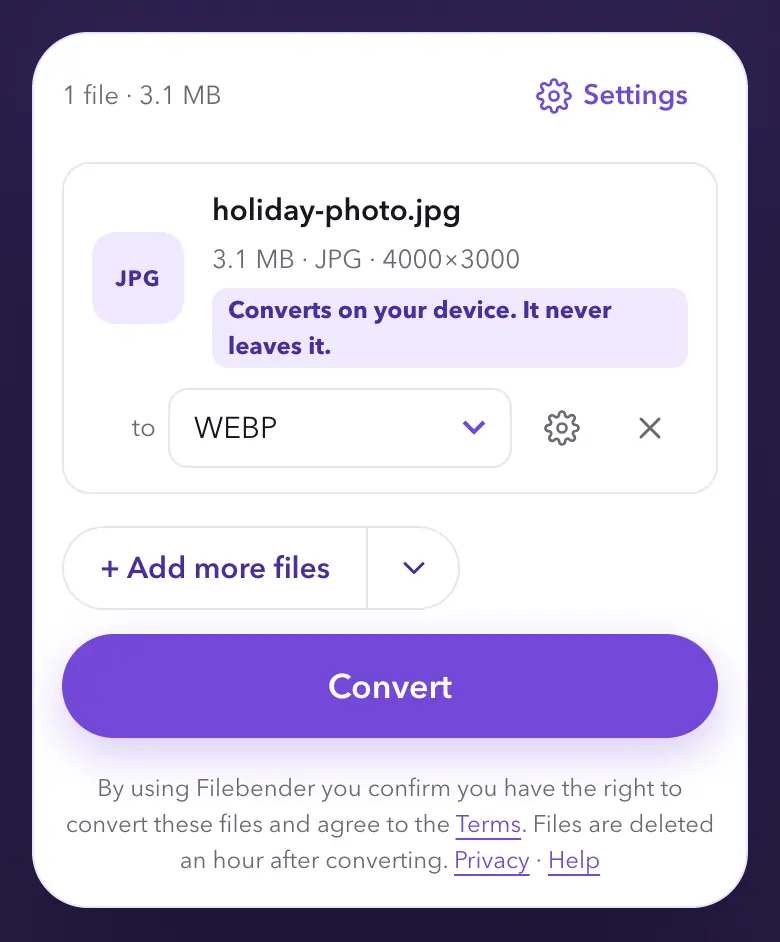
Some files are converted by your browser, on your device, instead of on Filebender's servers. Such a file is never uploaded: its row says Converted on your device. It never leaves it. before you convert, and its result says the same.
- Which files. JPG, PNG, WEBP, BMP, AVIF and single-frame GIF pictures of up to 50 MB that are becoming JPG, PNG or WEBP, when your browser can read them and your device has the memory to spare. A PNG kept as a PNG at its own size, as when you compress one, always goes to the servers, which can make it smaller than a browser can. The PDF tools always work on your device too (see PDF tools). Everything else goes to Filebender's servers as usual.
- They still count, and need your account. A file converted on your device counts against your plan like any other file, and you need to be signed in to your account to convert it. Filebender receives only its type, formats, size and the tool used, never its name or what's in it. If it fails, or hasn't finished when you leave the page, your browser tells Filebender and the file goes back to your allowance automatically. If that can't happen, for example because the tab closed or lost its connection first, email support@rabbitlabs.app from the address on your account and we'll put it back, while your pass is running or, on the free plan, on the same day. If the page is still open, it tells you so.
- Settings and formats that need the servers. A target size (the Email and Discord presets use one), keeping photo details, a DPI, icon sets, social media sizes and saving to Google Drive can only be done on the servers, and so can making anything other than a JPG, PNG or WEBP. Choose one and the row says the file needs Filebender's servers; it's uploaded only when you press Convert. The servers then work out its size, and whether a target size can be reached, as for any other file. Pictures with wide-gamut or print colours go to the servers too, so their colours are kept.
- Keep the results before you close the tab. Results made on your device exist only in that browser tab: download them before you close it. Each has Download, and Share where your browser can share files; Download all (ZIP) takes two or more at once, and in some browsers asks where to save the ZIP. If you try to leave the page or close the tab before you've downloaded, shared or zipped them, your browser asks first. If you go to another page while files are still converting, the ones that hadn't finished go back to your allowance; if you come back, their rows say so and offer Convert again. History lists them as converted on your device, with nothing to download.
- Bigger than the original? If a result comes out bigger than the file you started with, it says so and asks: Keep the original or Use the converted file, as for files converted on the servers.
- If one fails. Its row asks Convert on Filebender's servers instead? Nothing is uploaded unless you press Convert on Filebender's servers; the file is then deleted from the servers an hour after converting, like any other.
- Photos converted on your device always lose their location and camera details.
Make files smaller
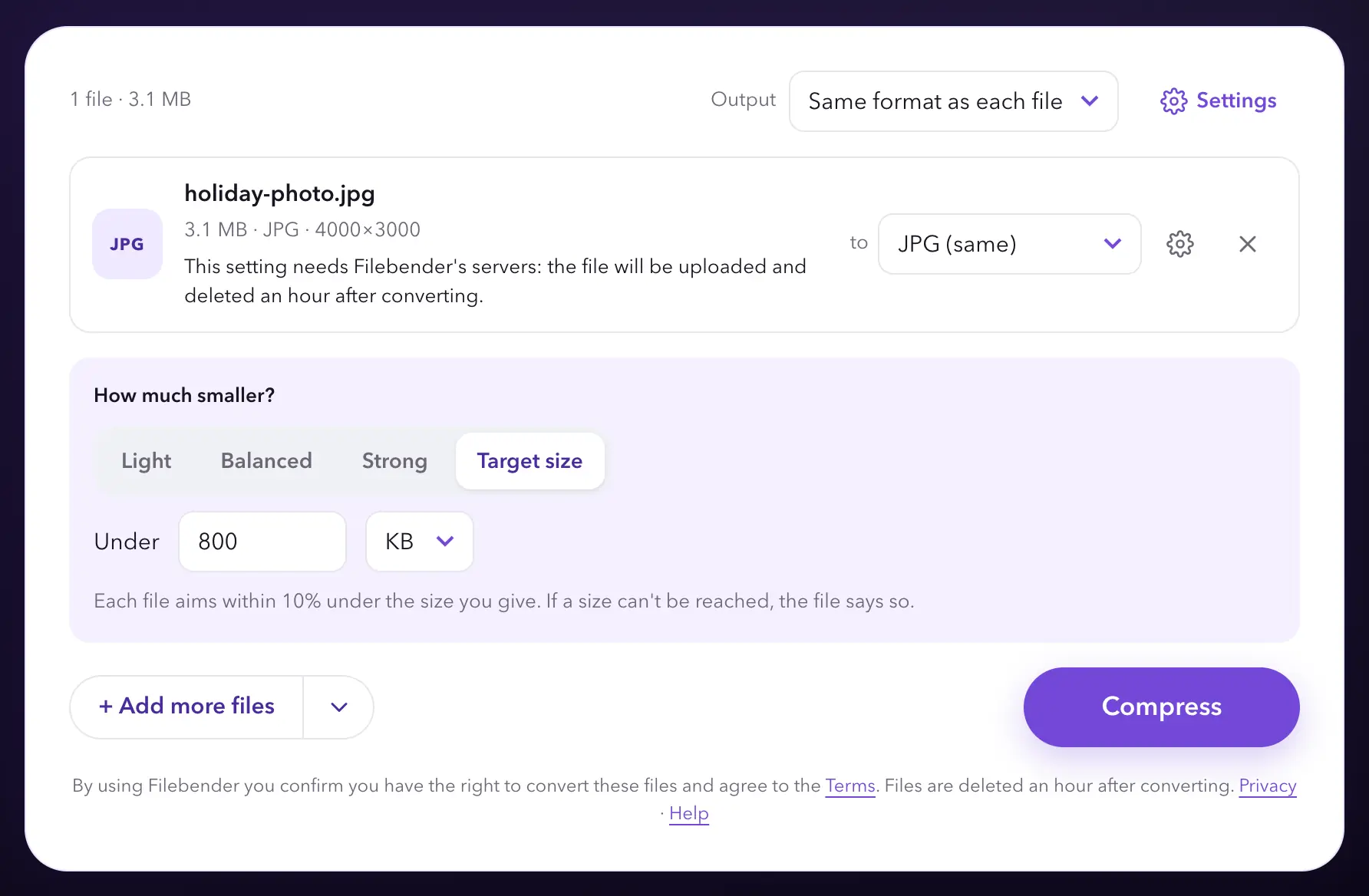
The Compress pages make files smaller and keep each file's format (the Audio Compressor makes MP3s). Choose Light, Balanced or Strong, or Target size and type the size you need in KB or MB: each file aims within 10% under the size you give. A target size is worked out on Filebender's servers, so a photo that would otherwise convert on your device is uploaded when you press Compress (see Converted on your device). If a video can't reach the size, a long one in 5 MB say, Filebender says so before starting and names the smallest it can do. For other files, the row says so after trying, with the smallest it managed.
Resize images and videos
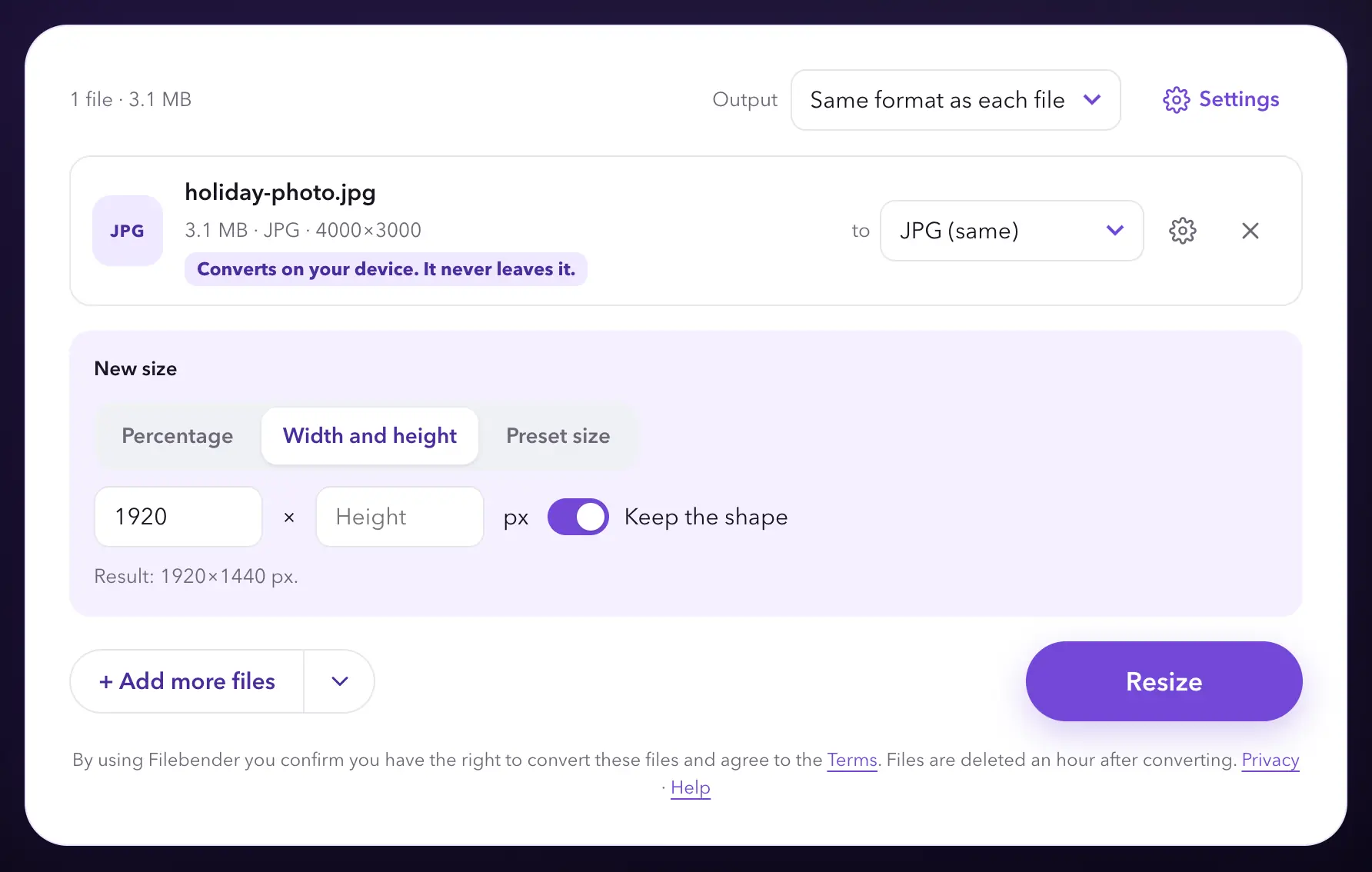
The Resize pages take a percentage, a width and height, or a preset size, and show the new dimensions before you convert. Making something bigger can't add detail, so Filebender warns you when a size would enlarge a file. A video fitted inside a new shape, such as the Social preset's upright 1080×1920, gets black bars to fill the rest.
Trim audio and video
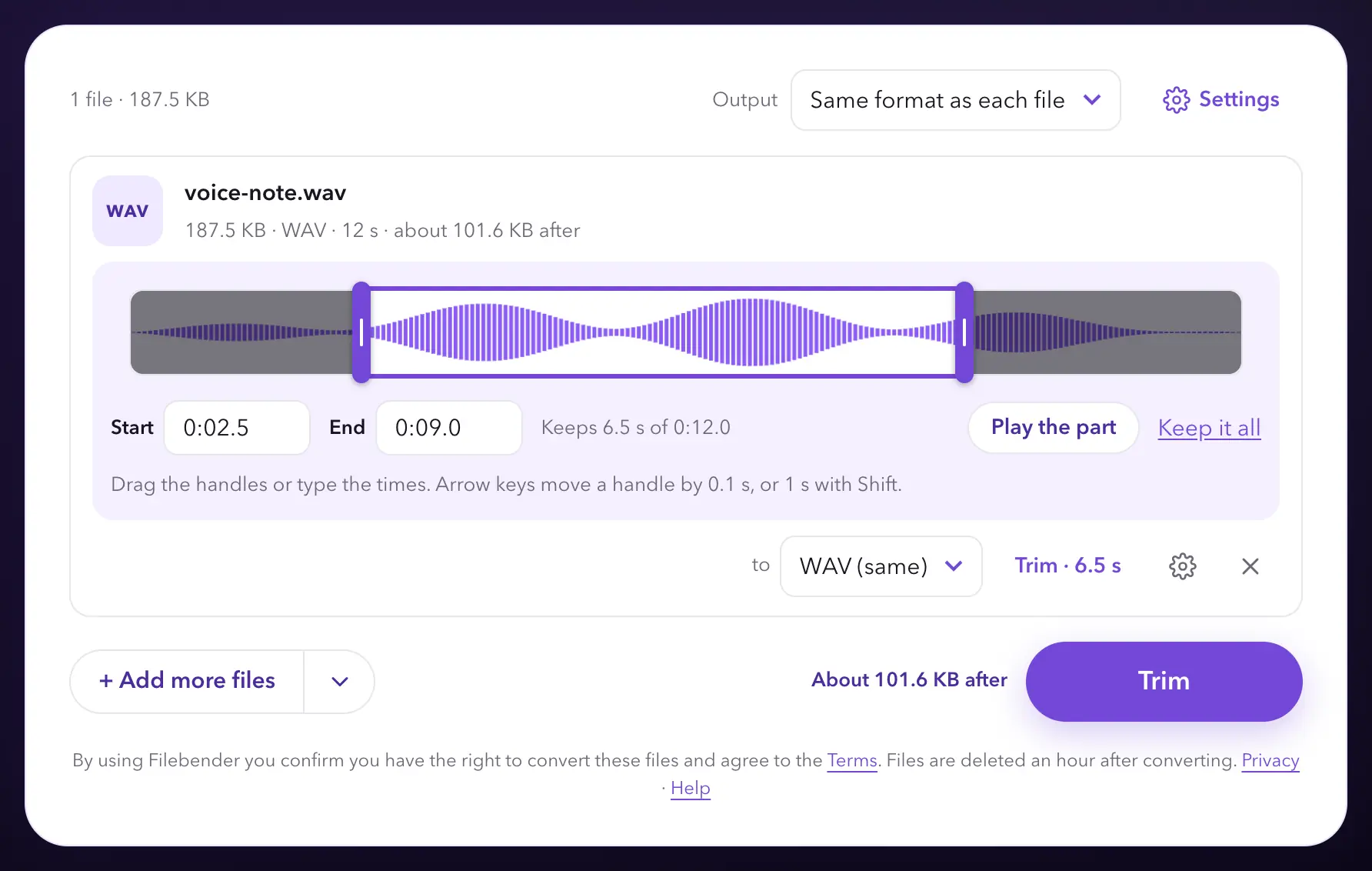
Once an audio or video file is added, its row has a Trim button, and Trim Video and Trim Audio open it straight away. It shows the file as a timeline: a strip of pictures from a video your browser can play, a sound wave for audio files up to 50 MB, or a plain bar for anything else, including files from Google Drive or a link, which trim the same way.
- Drag the two handles to the start and end of the part to keep, or type the times as minutes and seconds, like 1:05.5.
- With the keyboard, the arrow keys move a handle by a tenth of a second, and by a second with Shift or Page Up and Page Down; Home and End jump to the ends.
- Play the part plays what you've chosen from your own copy of the file, and Keep it all goes back to the whole file.
The cut is exact to a tenth of a second, because the part you keep is encoded again. MP4, MOV and WEBM videos, and MP3, WAV, AAC, FLAC, OGG and OPUS audio, can stay in their own format; MKV and AVI videos, and M4A, WMA and AIFF audio, need a new one, which you pick in the file's row. A trimmed video counts as one file and one video; trimming a video into audio is an ordinary file.
PDF tools: merge, split, rotate and more
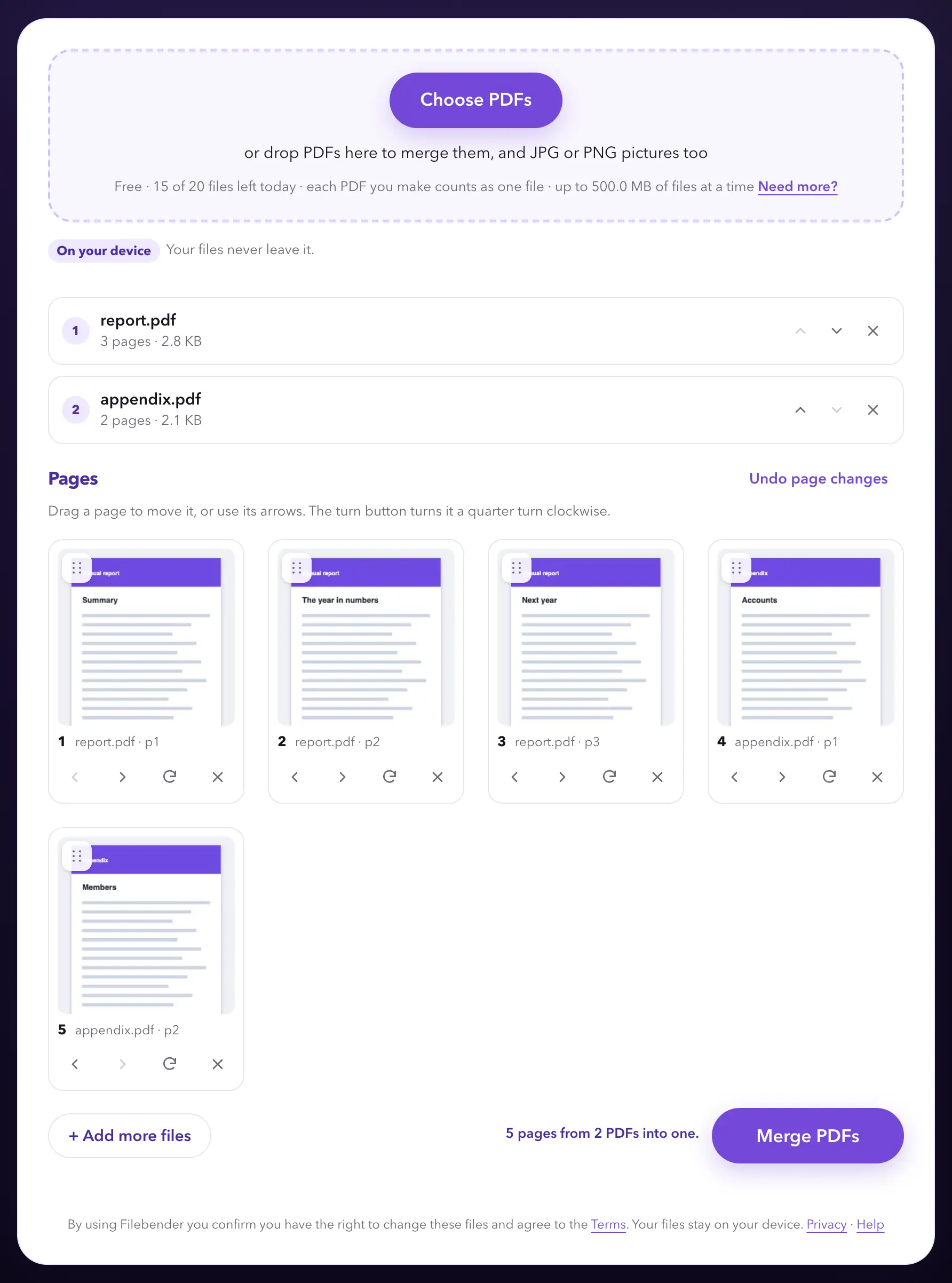
PDF tools in the menu lists them all. Merge PDF, Split PDF, Organise PDF pages, Rotate PDF, Delete PDF pages and Images to PDF work in your browser: your files open on your device and are never uploaded. They're on every plan, the free plan included, and need your account like the rest of Filebender. Each PDF you merge, split or rework counts as one file, however many PDFs, photos or pages go in or come out, and if nothing is made it doesn't count.
- Merge. Add two or more PDFs, drag pages or whole files into order, turn pages the right way up and take out the ones you don't need, then press Merge PDFs. JPG and PNG photos can go in too.
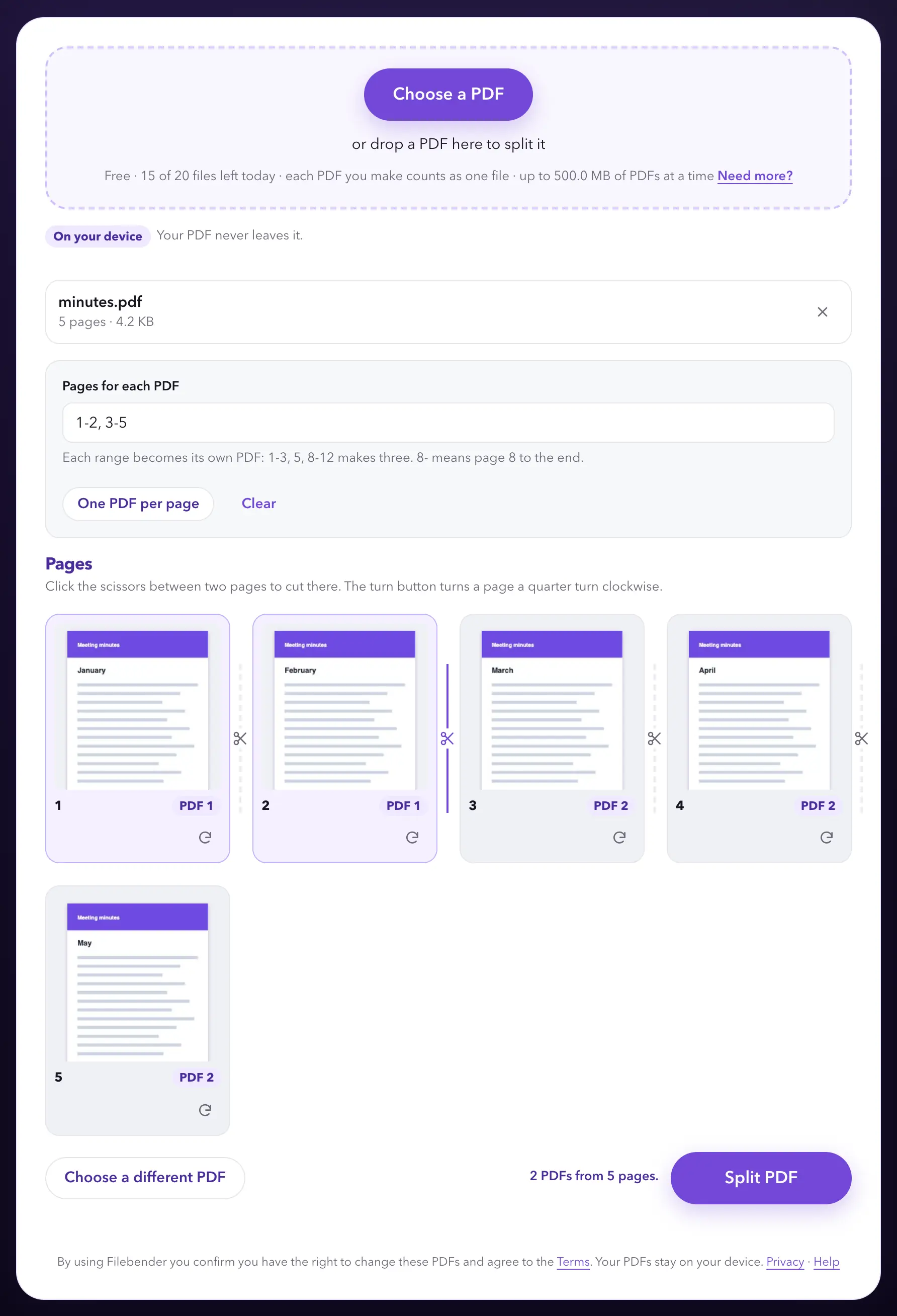
- Split. Click the scissors between two pages to cut there, or type the pages for each PDF, like 1-3, 5, 8-12 (8- means page 8 to the end); the cuts and the typed pages follow each other. One PDF per page cuts after every page. Each part becomes its own PDF, and two or more also come in one ZIP. Press Split PDF.
- Organise. Drag pages into order, or use their arrow buttons, turn them a quarter turn at a time, and remove the ones you don't need. Undo page changes puts every page back until you save. Press Save PDF.
- Rotate. Each page's turn button turns it a quarter turn clockwise, and Turn all clockwise or Turn all anticlockwise turns every page at once. Press Save PDF.
- Delete pages. Tick the pages to take out, or type their numbers, like 2, 5-7 or 10- (page 10 to the end), and press Select. Then press Remove selected pages and Save PDF. Undo page changes brings pages back until you save.
- Images to PDF. Add JPG and PNG photos, and PDFs too if you like, put them in order and press Make PDF. Each photo gets its own A4 page, upright or on its side to suit it, the way the camera took it. It's scaled to fit without being cropped, and a small photo isn't enlarged past 72 pixels to the inch. A photo's location and camera details aren't carried into the PDF. For iPhone photos in HEIC, use HEIC to PDF instead.
- Names. What you make is named after the first file, with what was done and Filebender added: report-merged-Filebender.pdf, report-organised-Filebender.pdf, or report-pages-1-3-Filebender.pdf for a split.
- What's kept. Pages are copied as they are, so text stays sharp and searchable and pictures keep their quality. Bookmarks aren't carried over, and form fields may stop being fillable.
- Passwords. A PDF that needs a password to open can't be used: open it in a PDF reader with its password, save a copy without one, and add that copy. A PDF that only limits printing, copying or editing works, but what you make won't carry those limits, so only go on if you're allowed to change it.
- A PDF your browser can't open may be damaged. Repair on Filebender's servers explains what happens before anything is sent: the PDF is uploaded, repaired on the servers and brought back to the page, and it's deleted from the servers an hour after it's repaired. Nothing is uploaded until you press Upload and repair. A repair counts as one file and shows in History.
What you make stays in the tab: press Download, or Share where your browser can share files, before you close it. If you try to leave first, your browser asks.
The PDF page tools work only on your device, so if Filebender ever has to switch converting on devices off, they're switched off for a while too, and their pages say so. The PDF Converter and the PDF Compressor still work on the servers then.
Read the text in scans and photos
Image to Text reads the words in a photo or a scan (JPG, PNG or TIFF) and gives you them as plain text. Make a PDF Searchable turns a scanned PDF, or a JPG, PNG or TIFF, into a PDF you can search and copy text from, with the pages looking as they did. A scanned PDF can also become Word, ODT, EPUB, HTML, text or Markdown: Filebender reads it first, and the document gets the text, a page for each page, but not the pictures or the layout.
- Languages. In the gear button's Text recognition section, tick the languages the file uses: English, French, German, Spanish, Italian, Portuguese, Dutch and Hindi, up to 3 at once. English is used if you tick none. Each extra language makes reading slower.
- Pages. Up to 50 pages a file on the free plan, and 500 with a pass. A longer file is refused before anything runs. However many pages it has, a file counts as one file.
- Where it's read. On Filebender's servers, not on your device. The file and the text read from it are deleted an hour after converting.
- Check the text. Reading is automatic and can get words wrong, especially in blurred or crooked scans, handwriting and unusual fonts. Pages that already have text are left as they are.
Send a file to your phone
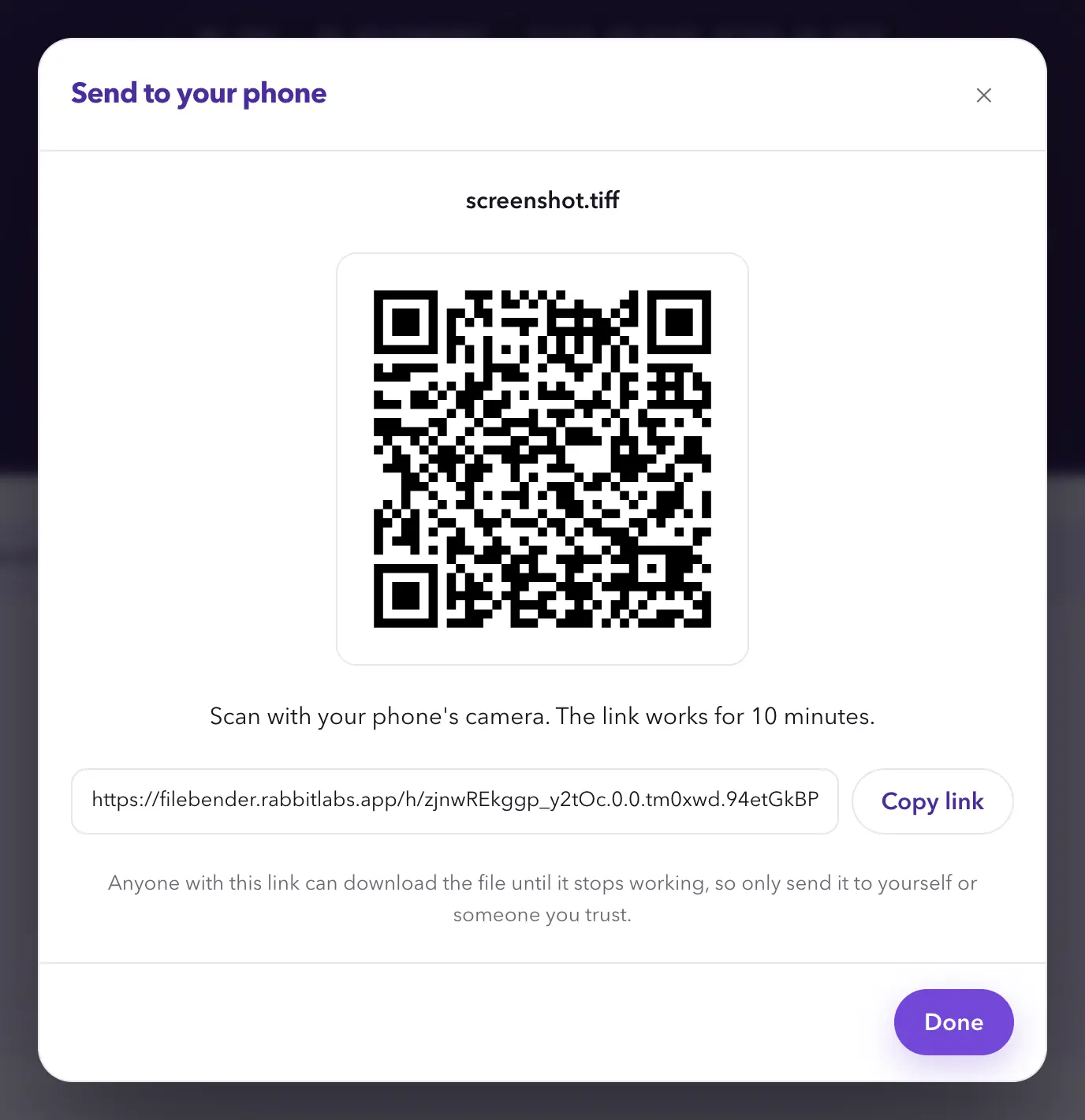
When a file has been converted on Filebender's servers, its result has Send to phone. It shows a QR code: point your phone's camera at it and open the link, and the file downloads on the phone, with no need to sign in there.
- The code works for 10 minutes, and never after the files are deleted. When it has run out, press Make a new code.
- Only send it to yourself or someone you trust. Anyone with the link can download the file until it stops working.
- No camera to hand? The link is under the code: Copy link and send it to your phone another way.
- Share appears where your browser can share files, for a result under 100 MB. Results made on your device have Share instead of Send to phone (see Converted on your device).
Add files from your phone
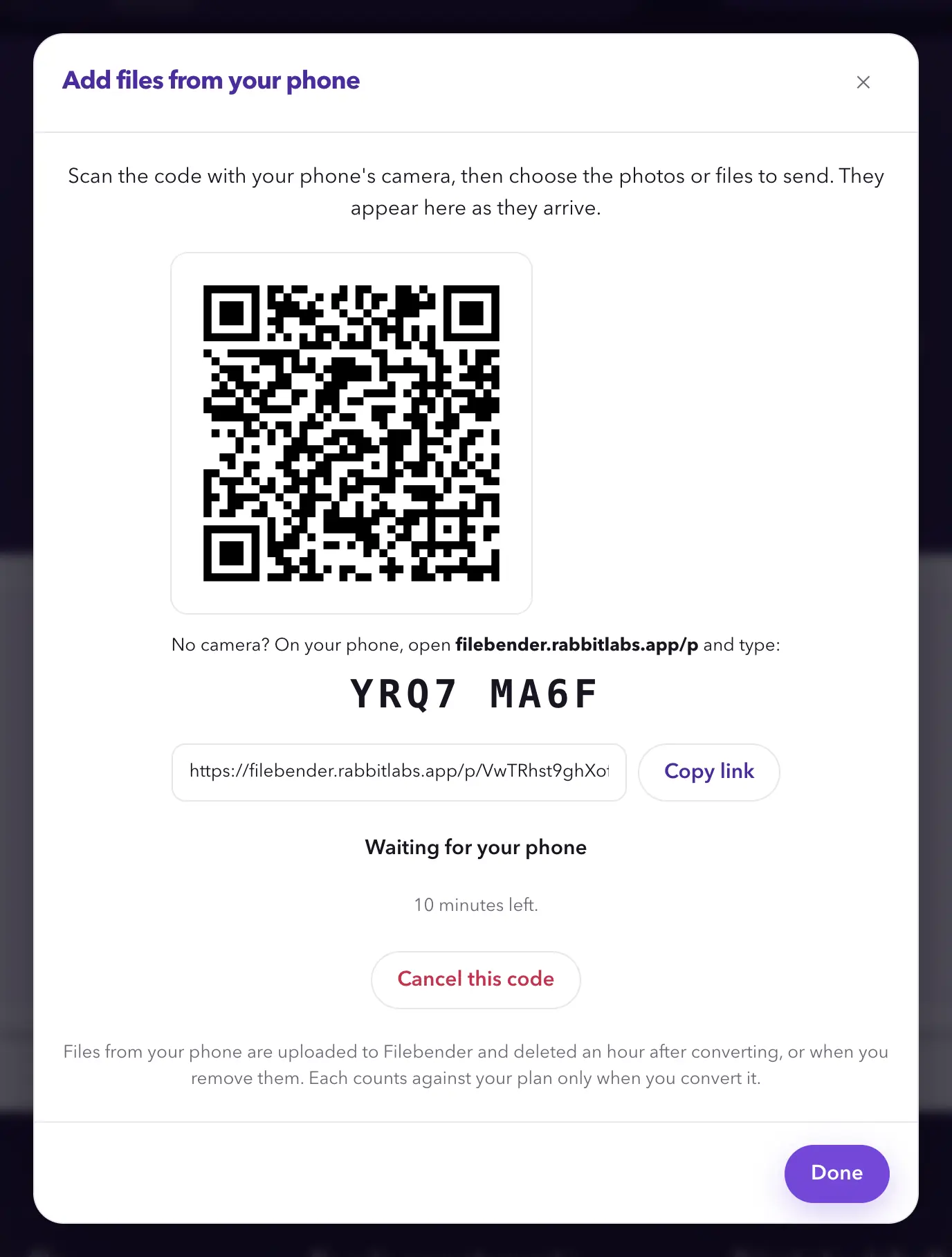
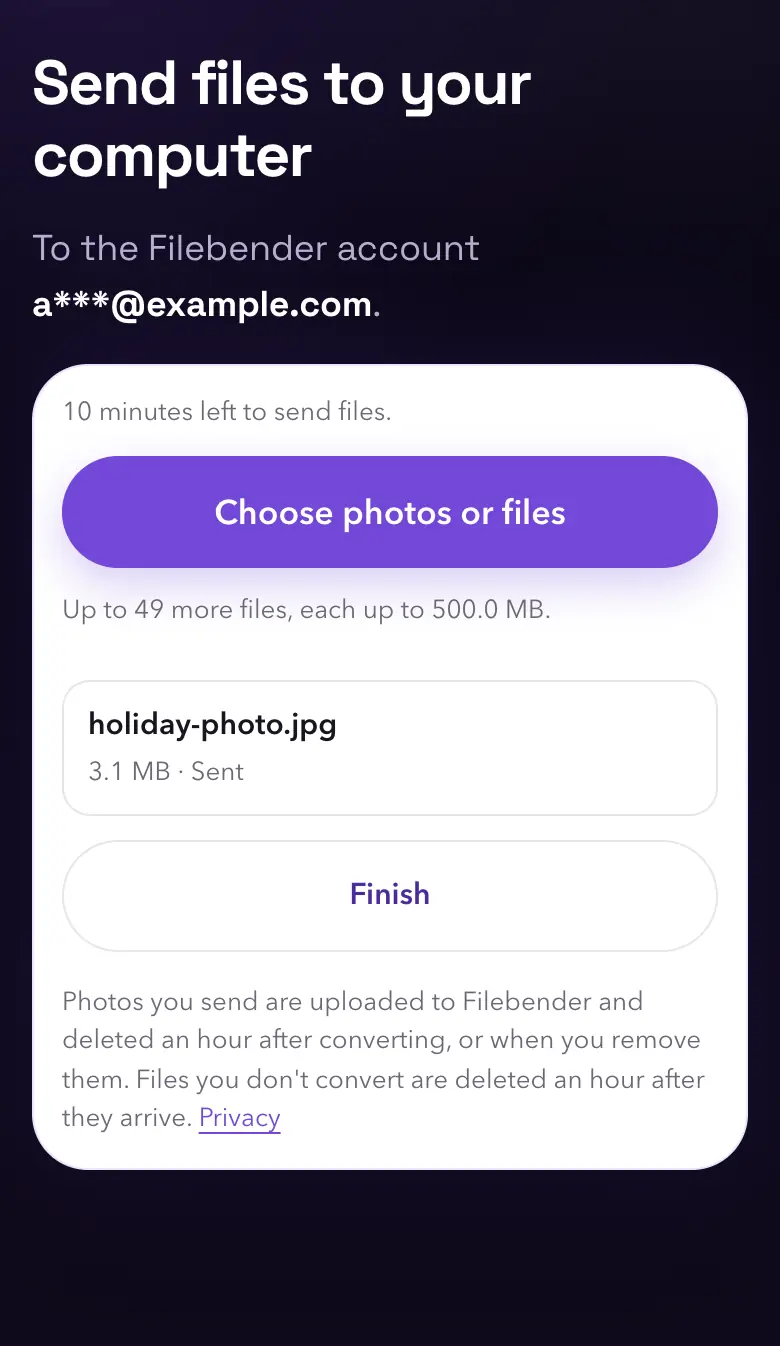
Send photos and files from your phone straight into the converter on your computer, without emailing them to yourself.
- On the computer, open the converter, press the arrow next to Choose files, then From your phone.
- Scan the QR code with your phone's camera. If you can't, open the address shown on your phone and type the code.
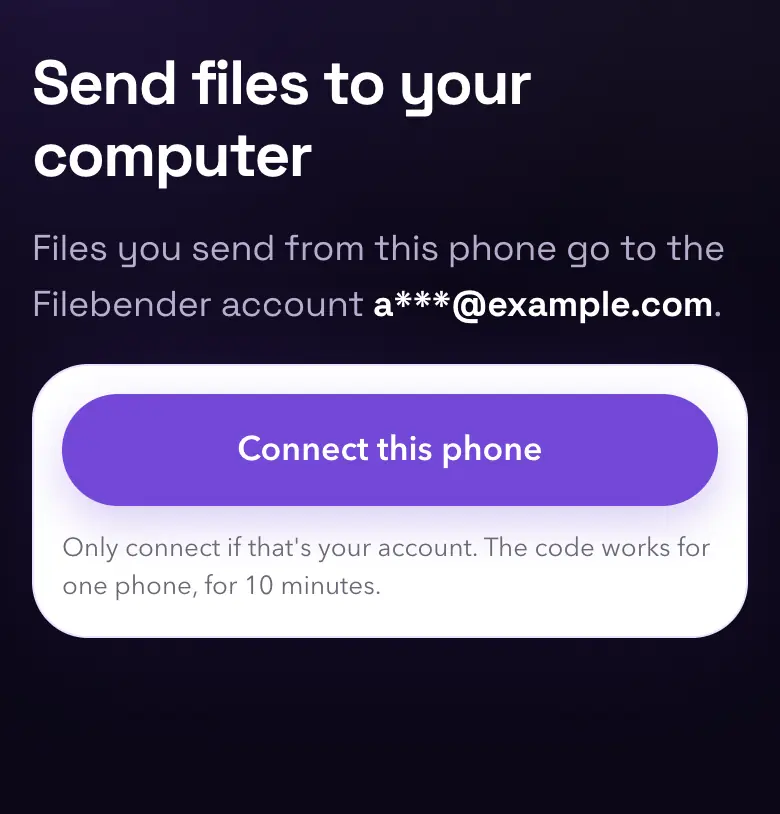
- Check the account the phone shows (your email address, partly hidden), then press Connect this phone.
- Press Choose photos or files. Each file says Sent on the phone, then appears in the converter's list on the computer.
- When you're done, press Finish on the phone, or Disconnect on the computer.
- A code works for 10 minutes and one phone, which can send up to 50 files. After that, choose From your phone again for a new code.
- Keep the code to yourself: whoever connects with it can add files to your account while it lasts. The computer shows which phone connected; if you don't recognise it, press Disconnect, which also stops any files still on their way.
- Closing the dialog keeps the phone connected, and a bar above your files says so.
- Files from your phone count against your plan only when you convert them. They're deleted an hour after converting, or an hour after they arrive if you don't convert them.
- Depending on your phone and its browser, iPhone photos may arrive as HEIC or be turned into JPG by the phone first. Filebender converts either.
Google Drive
From Google Drive, under the arrow next to Choose files, opens Google's own picker. Filebender asks only for permission to see the files you choose there. Google Docs, Sheets and Slides convert too.
In the settings, Also save results to Google Drive puts each converted file next to its original (in My Drive for files that didn't come from Drive), or in a folder you choose, without overwriting anything. File names sets how results are named, from {name}, {width}, {height}, {ext}, {date} and {index}; the default is {name}-Filebender.{ext}. A file from Drive can also replace the original, which moves the original to Drive's bin for 30 days rather than deleting it.
History
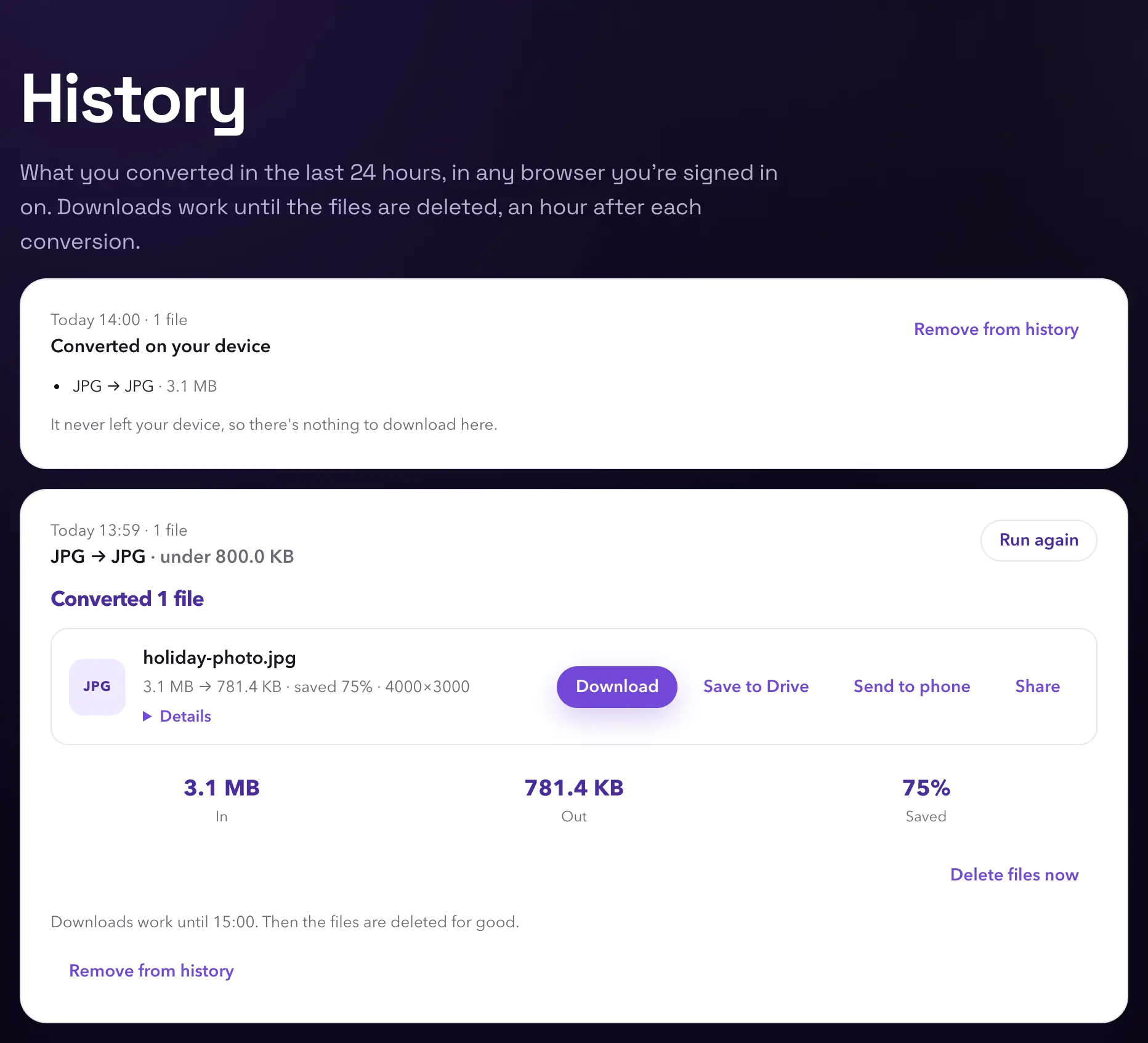
History lists what you converted in the last 24 hours, with the downloads that still work. Files are deleted an hour after converting, so older rows keep only their names and settings. Files converted on your device are listed as converted on your device, with their formats and sizes, and nothing to download (see Converted on your device).
Status
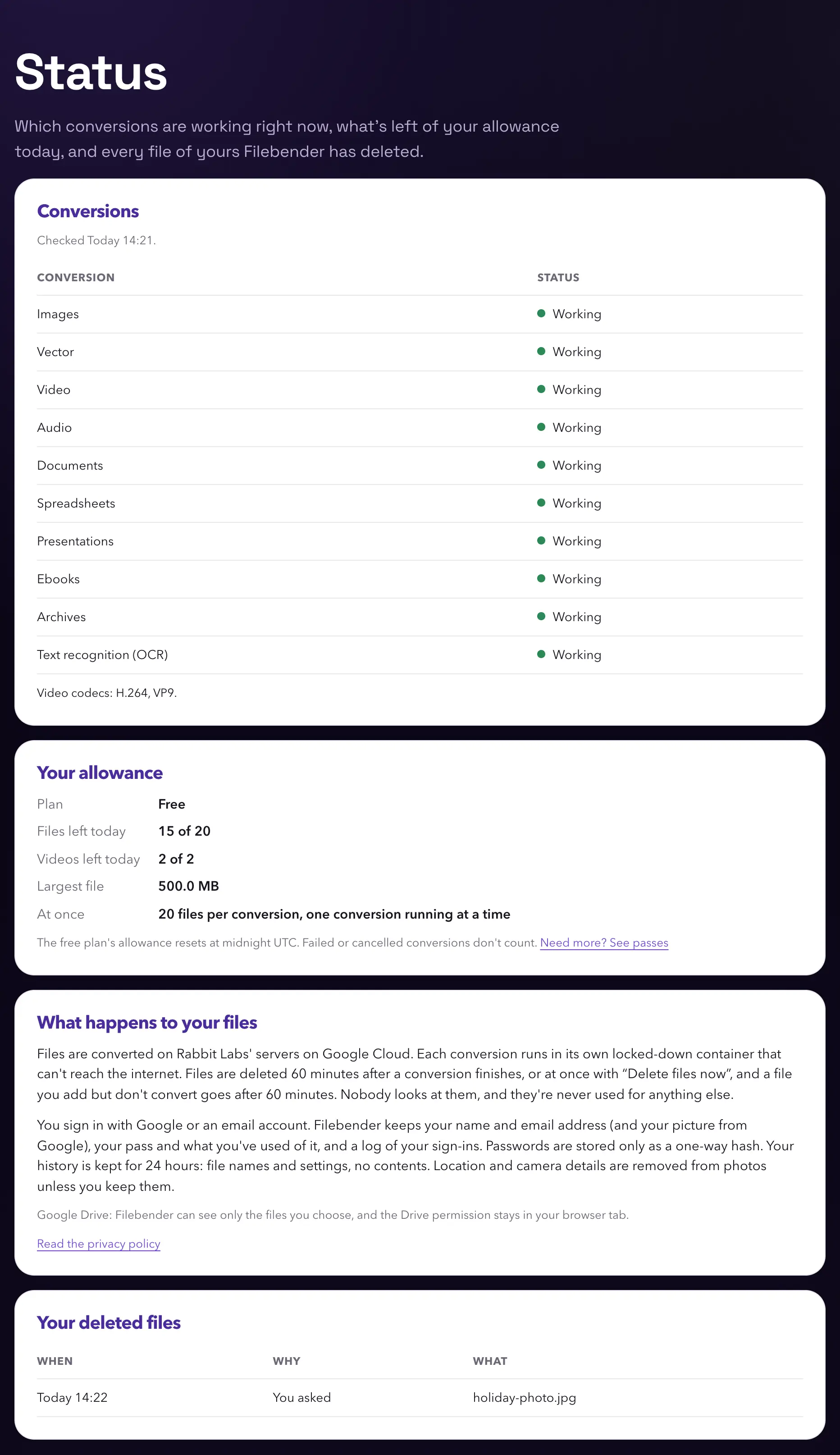
Status shows which kinds of conversion are working right now, what's left of your allowance, and a log of the files of yours Filebender has deleted in the last 24 hours, with when and why.
The free plan and passes
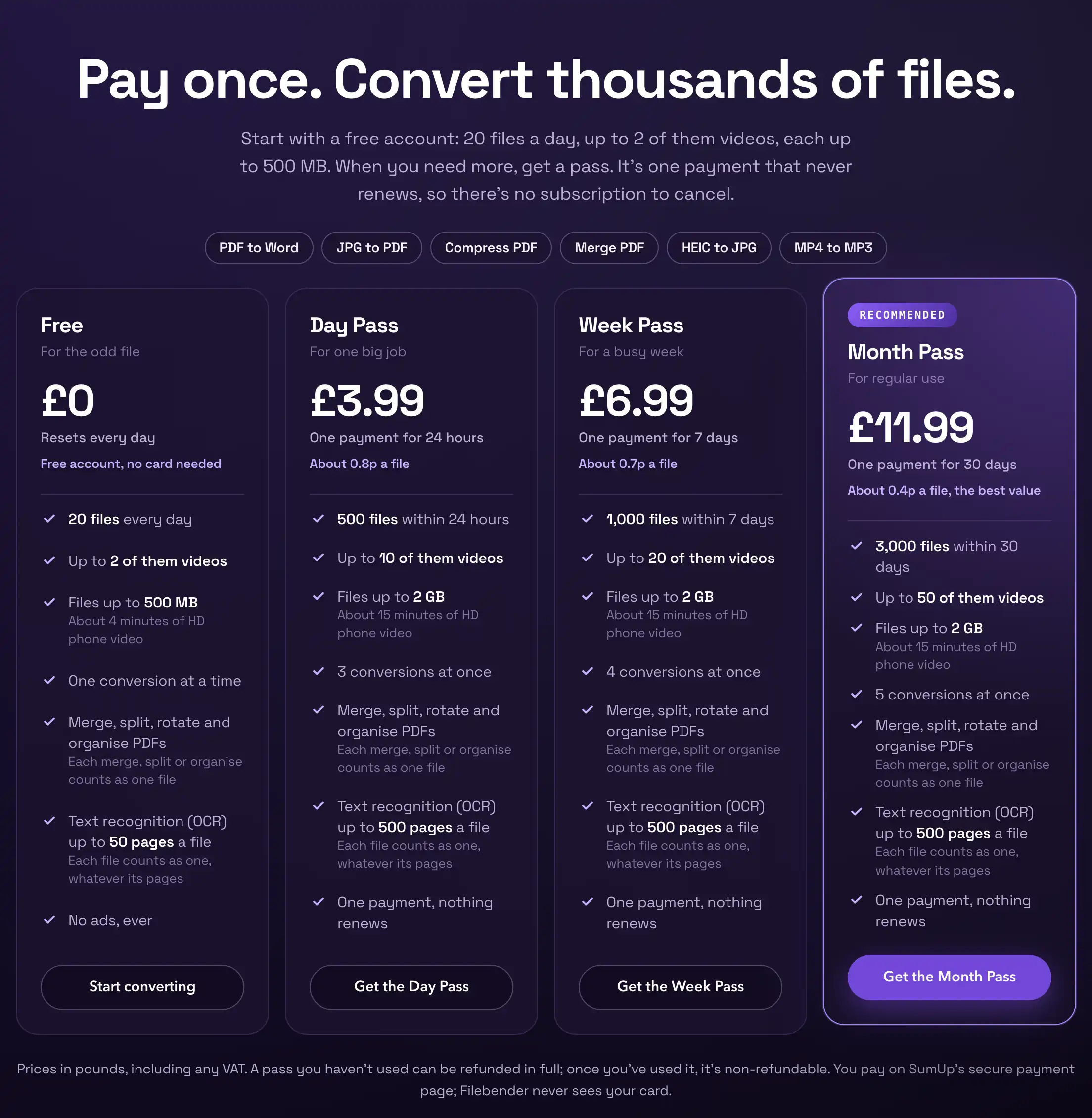
The free plan, with a free account, is 20 files a day, up to 2 of them videos, with files up to 500 MB, one conversion at a time, and text recognition of up to 50 pages a file. It resets at midnight UTC, and it's counted per account and per internet connection, whichever has used more.
When you need more, Pricing has three passes, each taking files up to 2 GB and reading up to 500 pages a file:
- The Day Pass (£3.99): 500 files within 24 hours, up to 10 of them videos, and 3 conversions at once.
- The Week Pass (£6.99): 1,000 files within 7 days, up to 20 of them videos, and 4 conversions at once.
- The Month Pass (£11.99): 3,000 files within 30 days, up to 50 of them videos, and 5 conversions at once.
Every file counts once, whatever its type and wherever it's converted: on Filebender's servers or on your device. Each PDF you merge, split or rework with the PDF tools counts as one file, however many PDFs, photos or pages go in or come out, and so does a file read with text recognition, whatever its pages. Converting, compressing, resizing or trimming a video counts as a video, including turning it into a GIF or an animated WEBP, and so does turning a GIF or slides into a video. Taking the sound out of a video is an ordinary file.
Buy a pass
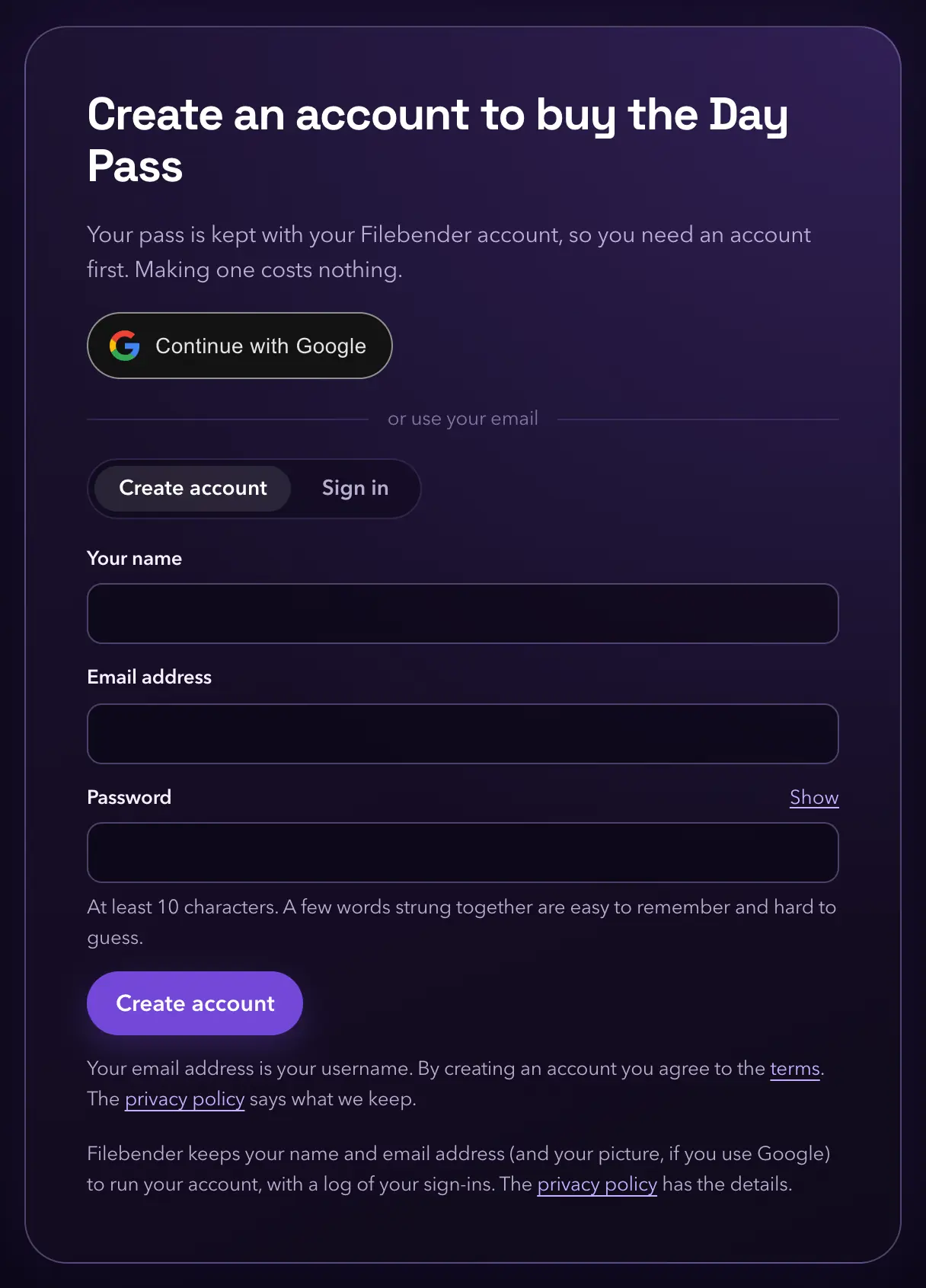
- On Pricing, press Get the Day Pass, Get the Week Pass or Get the Month Pass. If you aren't signed in, it asks you to create an account or sign in first, because the pass is kept with your account.
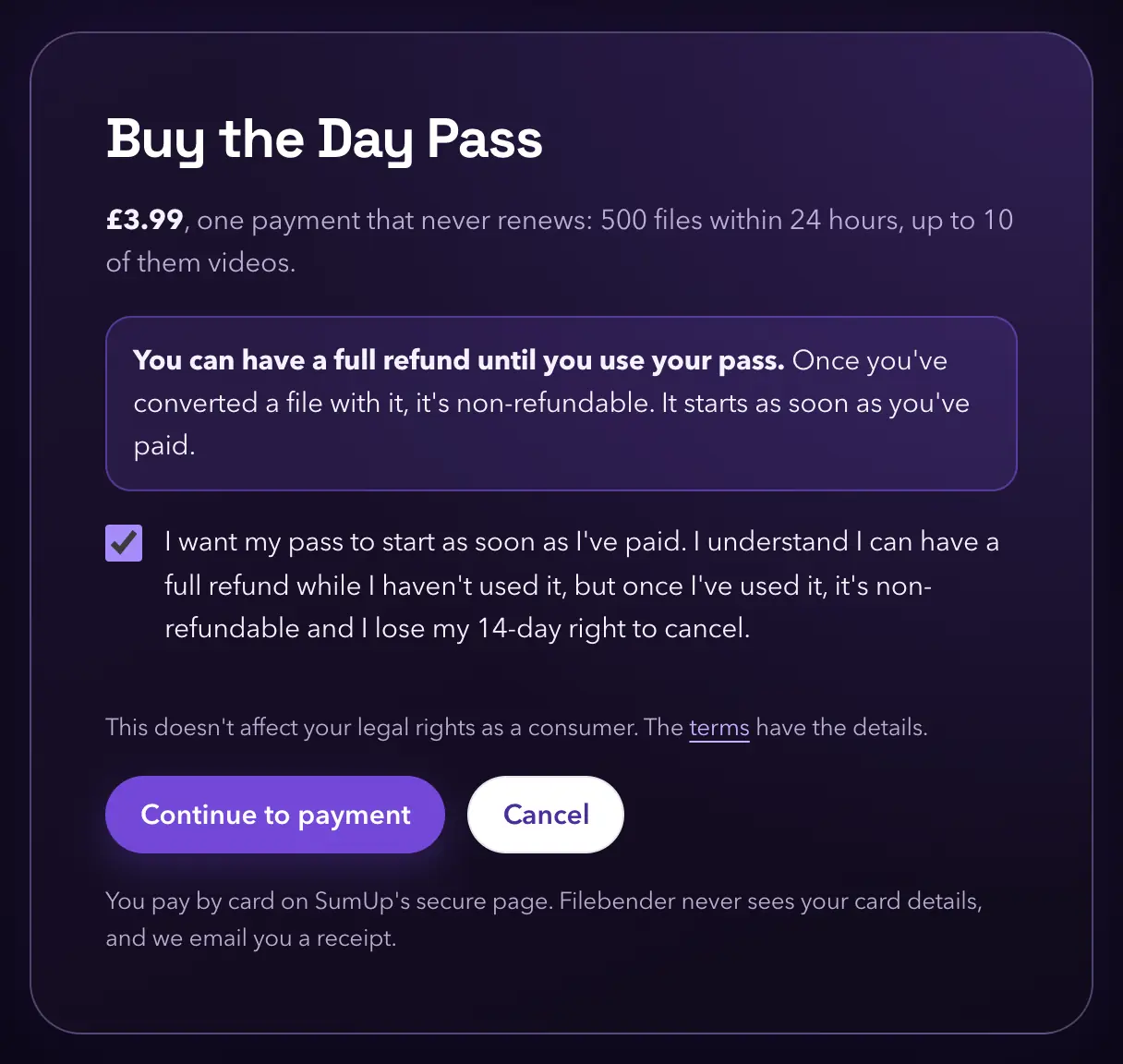
- Check the pass, its price and what it includes. You can have a full refund until you use your pass, but once you've converted a file with it, it's non-refundable. Tick the box to confirm that you want your pass to start as soon as you've paid and that you understand this. Then press Continue to payment.
- You're taken to SumUp's secure payment page to pay by card. Filebender never sees your card details.
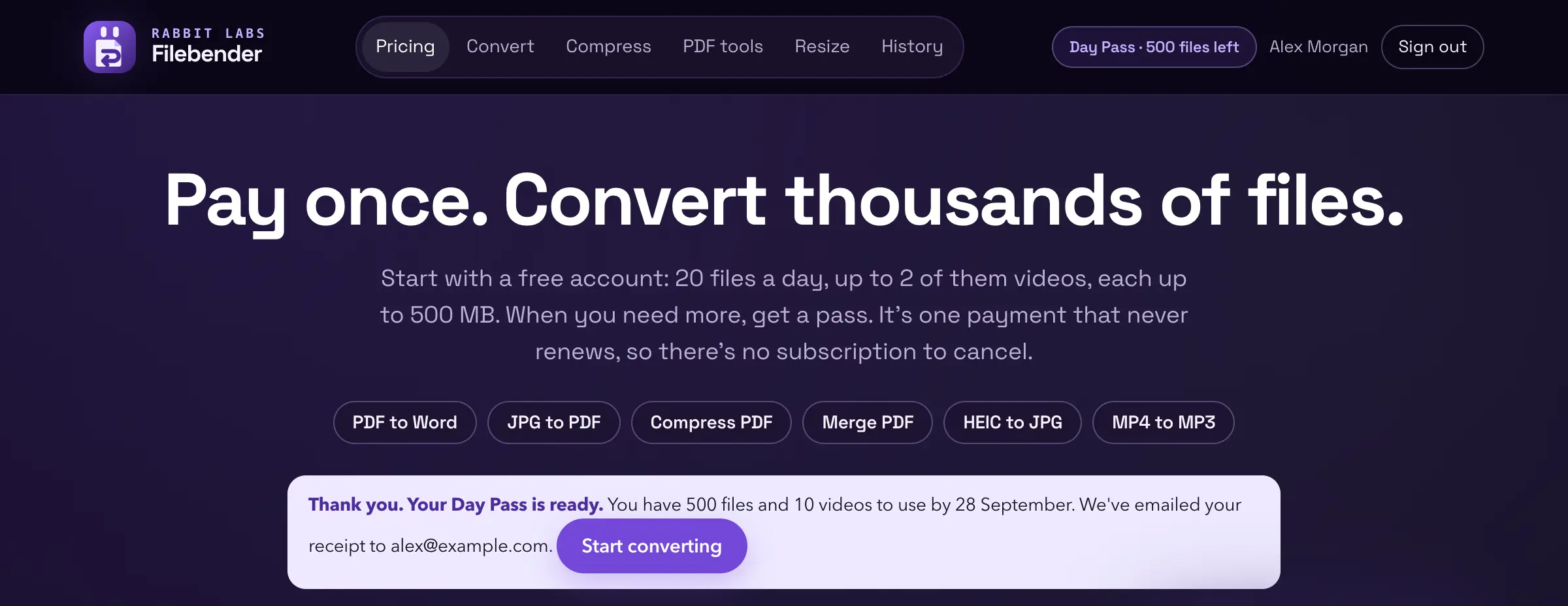
- After paying, you come back to Pricing, which says your pass is ready and how many files and videos it has to use.
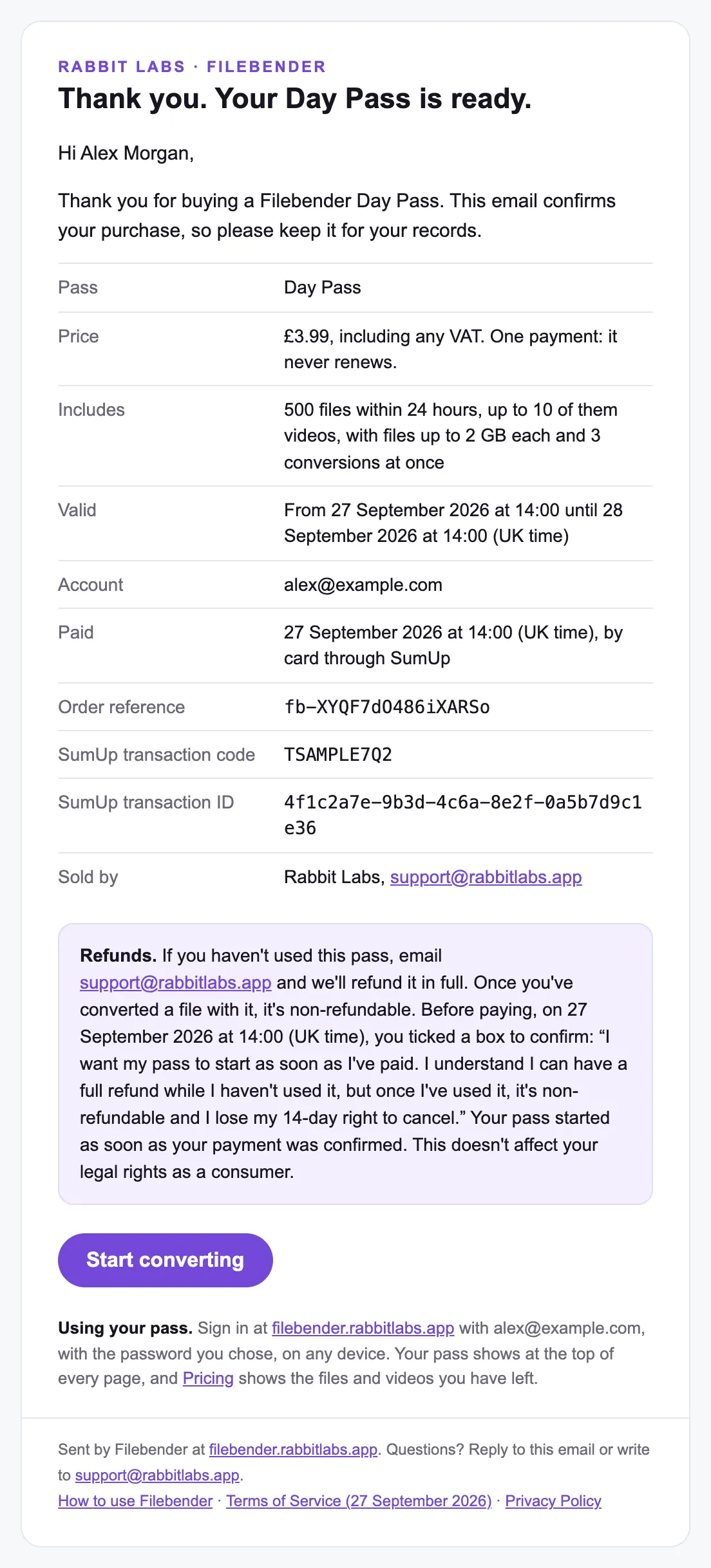
- We email you a receipt: the pass, the price, when it ends, your order reference and SumUp's transaction code, with how to sign in and use it. Keep it for your records.
Prices include any VAT. A pass is one payment and never renews. Buy another while one is running and they add up: the files and videos are added together, and everything lasts until the later end date. A file that fails, or that you cancel, never counts against your pass. If you haven't used a pass, email support@rabbitlabs.app and we'll refund it in full; once you've used it, it's non-refundable, so the free plan is there to try Filebender first. This doesn't affect your legal rights as a consumer, and the terms have the details. Questions about a payment go to support@rabbitlabs.app.
On a phone
Filebender is a web page, so it works in any modern browser on a phone, a tablet or a computer, with nothing to install. On a phone, Choose files opens your photos and files. To move files between a phone and a computer, see Send a file to your phone and Add files from your phone.
Your files and your data
Pictures your browser can convert, and everything you do with the PDF tools, are handled on your device and never leave it, unless you choose to send a file to the servers. They still need your account, and Filebender receives only their type and size, to count them. Everything else is converted on Filebender's servers on Google Cloud, each conversion in its own locked-down container with no internet access. They're deleted an hour after converting, or at once when you press Delete files now. Nobody looks at them, and they're never used for anything else. Location and camera details are removed from photos unless you choose to keep them.
The privacy policy says exactly what Filebender keeps about your account and for how long, and the terms cover using Filebender and buying passes.
Questions
Is it really free?
Yes, with a free account. There's no watermark and no ads, and the free plan is 20 files a day, up to 2 of them videos, with files up to 500 MB. Passes are for when you need more.
Do files converted on my device count?
Yes. They need your account and count against your plan like any other file, and each PDF you merge, split or rework with the PDF tools counts as one file. Filebender receives only their type, formats and size, never their names or contents. A file that fails on your device, or hasn't finished when you leave the page, goes back to your allowance automatically when your browser reports it. If it can't, for example because the tab closed or lost its connection first, you can email support@rabbitlabs.app from the address on your account to have it put back while your pass is running or, on the free plan, on the same day. If the page is still open, it tells you so.
Why did my file fail?
Its row says why, and what to try: a damaged or copy-protected file, a PDF that needs a password, a scan with more pages than your plan reads (50 a file on the free plan, 500 with a pass), a digitally signed PDF that can't be made searchable, a picture with no text to read, or a size that can't be reached. If it says the converter stopped unexpectedly, try again or try a smaller file, and tell us if it keeps happening.
Can anyone else see my files?
Not unless you share a link. Your files are tied to your account, and nobody at Rabbit Labs looks at them. Download links are long random addresses that work for up to an hour and stop when the files are deleted, and links from Send to phone work for 10 minutes, but anyone you give one to can use it until then.
My phone says another phone is using the code. What now?
Each code connects one phone: the first to press Connect this phone. If that wasn't yours, press Disconnect on the computer, then choose From your phone again for a new code.
My phone's code has expired.
A code works for 10 minutes. On the computer, choose From your phone again, or press Make a new code, and scan the new one.
Do files I send from my phone count?
Not when they're sent, only when you convert them, like any other file. Files you don't convert are deleted an hour after they arrive.
Which formats does it handle?
Images (JPG, PNG, WEBP, AVIF, HEIC, GIF, TIFF, BMP, ICO, PSD and camera RAW), vector art (SVG, EPS, AI, PDF), video (MP4, MOV, MKV, WEBM, AVI and more), audio (MP3, WAV, AAC, FLAC, OGG and more), documents, spreadsheets, presentations, ebooks and archives. Add a file and its row lists exactly what it can become.
How big can a file be?
Up to 500 MB on the free plan, about 4 minutes of HD phone video, and up to 2 GB with any pass.
How do I close my account?
Email support@rabbitlabs.app from the address on the account and we'll delete it, with its sign-in log. Closing it ends any pass on it. If you haven't used a pass, ask for your refund first; a pass you've used ends without one. Your files go by themselves within an hour and your History within a few days. Records of paid orders are kept for six years, as UK tax law requires; the privacy policy has the details.
Still stuck?
Email support@rabbitlabs.app with what you were doing and what happened. A person reads every message.